
Optimise your Module with the new Microsoft Education Integration in Canvas

From 17 August 2026, a new Microsoft Education integration will be available in Canvas, bringing together Microsoft Teams and OneDrive to support teaching and learning. The launch coincides with the annual QSIS course rollover and the creation of new Canvas module shells for the 2026/27 academic year.
It is important to remember that Teams and Canvas have distinct but complementary purposes:
- Microsoft Teams is used for communication, collaboration and meetings.
- Canvas remains the core environment for teaching, learning and assessment.
Essential module information, learning materials, activities, assessment details and feedback should therefore continue to be provided through Canvas.
This blog post explains what the new integration means for you, highlights the benefits for each app, outlines the new process for creating Module Teams, and provides an overview of how OneDrive will work within Canvas to help you prepare for the new academic year.
Key Benefits
The new Microsoft Education integration has been designed to make it easier to use Microsoft tools alongside Canvas, creating a more consistent experience for staff and students.
Key benefits include:
Teams Creation & Roster Sync – Automatically provisions a matching Microsoft Team, background M365 Group, and secure SharePoint document library the first time you click the link in your Course Navigation. Canvas course roster enrolments sync smoothly and dynamically to handle membership.
Enhanced OneDrive Integration – Full, reliable access to Word, PowerPoint, and Excel directly inside the Canvas environment for creating, deep embedding, and editing cloud content resource materials. Supports optimal workflows and sets up future scalability with other Microsoft apps available.
Simplified Permissions Management – Eliminating manual sharing workflows and broken links. Document access rules automatically mirror your active Canvas enrollment permissions (e.g., Staff maintain editing capabilities while students receive view-only access), ensuring master documents remain secure and protected from accidental overwrites.
Improved Collaborations – This updates the native Canvas Collaborations functionality with a highly stable framework that significantly reduces authentication errors, supporting richer real-time group interactions with existing files and enhancing stability.
Cloud Template Assignments – Allows teachers to select a single master cloud document that seamlessly clones an individual, dynamically tracked, and editable iteration for every student when launching a custom Canvas assignment workflow.
- Modern, secure integration – Built on Microsoft’s latest supported technology, providing improved reliability and helping the University maintain modern security standards.
Microsoft Teams
The first time you open the Microsoft Education integration in a Canvas module, a new Module Team and its associated SharePoint file library will be created automatically (see below screenshot).
Everyone enrolled on the Canvas module will be added to the Team automatically. Teaching staff will be assigned as Owners, while students will join as Members with appropriate permissions.
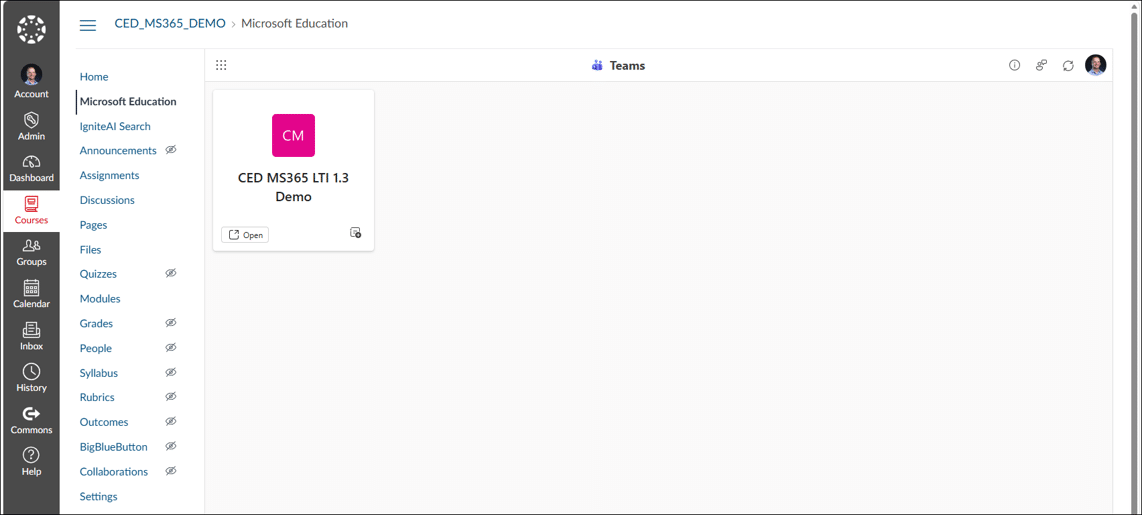
The Team membership is managed from Canvas, so any changes to enrolments in Canvas will be reflected automatically in Microsoft Teams.
Files created or uploaded through Canvas are stored in a dedicated folder within the Module Team’s SharePoint document library, making it easier to organise and manage resources throughout the academic year.
Setting up a Microsoft Team for Your Module
Microsoft Module Teams will no longer be created automatically at the start of the academic year. If you require a Team for your module, enable Microsoft Education within your course navigation menu and select the Microsoft Education link to generate your Module Team.
🎥 Watch our 10-second guide showing how to create a Module Team.
Microsoft OneDrive
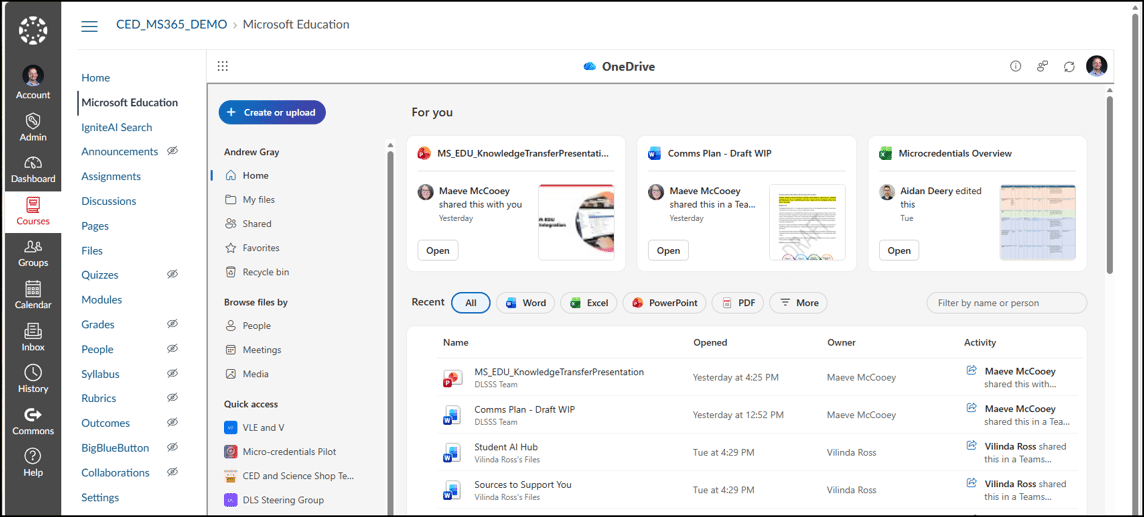
The new OneDrive integration makes it easier to find, create and share Microsoft Word, Excel and PowerPoint files directly within Canvas.
You can add documents to pages, announcements, discussions and other course content, making it simpler to provide resources for students while keeping access to files managed appropriately.
Files created or uploaded through Canvas are stored in your module’s dedicated OneDrive folder, helping you organise your content and making it easier to manage resources throughout the academic year.
FAQs
This FAQ resource has been compiled to address common queries, outline technical prerequisites, and support staff as they navigate this transition within Canvas.
While the legacy tool has served us well, Microsoft and Canvas are shifting away from the older LTI 1.1 technology that powers it. This transition to LTI 1.3 is necessary to ensure long-term stability, stricter data security, and seamless platform performance ahead of future global updates.
Rather than just a technical baseline fix, this upgrade provides major improvements to our digital workspace - offering much higher reliability, eliminating common authentication errors, and significantly reducing manual permissions management for staff.
Existing files and links created through the legacy integration will remain available. However, Microsoft Collaborations and some content created through the new integration may need to be recreated or checked after course rollover. It would be worth reviewing Microsoft content in Student View before the module is made available to students.
The new integration is designed to reduce technical overhead and save you time. Key improvements include:
- Automated Permissions: You no longer need to manually adjust OneDrive link sharing settings; permissions mirror your Canvas roster automatically.
- Seamless Template Assignments: You can share a single cloud master document, and Canvas will handle provisioning an individual copy for each student automatically.
- Automatic Roster Syncing: Launching Microsoft Teams from within your course dynamically provisions a matching Team space, synced directly with your course roster.
Yes. Due to the implementation of this integration, alongside broader Canvas interface upgrades, the student submission workflow will be modernised.
Students will see a refreshed, more intuitive interface, including a visual submission progress tracker that gives them clarity at a glance when turning in work.
We will be communicating directly with the student body at the start of the academic year to ensure they are fully aware of these improvements, focusing on the new assignment submission workflow and necessary browser requirements.
When you embed or link a file using the Microsoft Education LTI 1.3 integration, the system automatically creates a new copy of that file within the specific SharePoint document library for that Canvas course.
Because this process severs the connection to your original source file (such as the one in your personal OneDrive), any subsequent updates made to your original document will not automatically sync to Canvas.
To update your course content, you have two options:
Edit the course copy directly: Locate and edit the file within the dedicated SharePoint document library created for that specific Canvas course.
Re-embed the file: Replace the existing link by re-embedding or re-linking the newly amended original document within your Canvas page.
The mechanism for generating Module Teams is shifting to a dynamic model to support better data integrity. Previously, Microsoft Teams were generated automatically for every module via a centralised background script developed and supported by D&IS. This script is being decommissioned.
Moving forward, a dedicated Module Team will be provisioned instantly the first time a staff member launches the integration within their specific Canvas course.
Please note that section-based channels will no longer be generated as part of this workspace creation, as this specific feature is not currently supported natively by the Microsoft LTI framework. However, this remains a highly requested enhancement globally, and Microsoft is actively reviewing it for potential future product release.
It will still be possible to create, edit, and amend Teams (including those created via the integration) and channels directly within Microsoft Teams.
To authenticate the connection between Canvas and Microsoft securely, users must ensure that cross-site tracking and third-party cookies are enabled in their browser settings.
During institutional testing, Microsoft Edge consistently offered the most stable performance. However, we recognise that Safari remains the most widely used browser among our student body.
Some browser privacy settings may need to be adjusted to allow Canvas and Microsoft to work correctly together. Step-by-step guidance will be available if users experience access or sign-in issues.
Our initial priority is achieving feature parity with the legacy Office 365 integration. Prioritising OneDrive and Microsoft Teams ensures that core, day-to-day workflows remain uninterrupted and fully supported.
Restricting the initial rollout is a deliberate decision to prevent interface bloat and avoid duplicating existing functionality (such as assignments and grading workflows). This phased approach ensures staff and students are not overwhelmed by redundant functionalities during the transition.
If you have a specific requirement for additional Microsoft 365 applications that are available in this integration, these can be formally requested for evaluation through the DLS Roadmap Process. This allows the support teams to scale the platform strategically while ensuring the necessary support and documentation are in place.
Further Support
- If you encounter any technical issues or require support with Microsoft Tools, please submit a support ticket with Digital and Information Services (D&IS).
- Should you require training on Canvas-related functionality, including how Microsoft tools are accessed and used within Canvas, please email elearning@qub.ac.uk.