
Skip links
Panopto

Copying Panopto recordings to another Canvas course

Lecture recordings should generally be re-recorded for each new cohort of students. However, some Panopto videos, such as welcome videos or evergreen teaching content, can be reused from year to year if deemed pedagogically appropriate.

Rather than recording these again, you can copy them from a previous Canvas course into your current course. This can be done at any time during the semester or as part of your usual Canvas course rollover process, as illustrated in the infographic below (Step 4). 

Panopto Rollover Process - Step 4: Copy Panopto video content, Step 5: Re-embed videos and check links

What is a 'Reference Copy'?

The process below creates a ‘Reference Copy’ of your video. This preserves captions, quizzes, streams and other video content while removing course-specific data such as viewing statistics, discussions and quiz results. The copied video remains linked to the original, so changes to the original will be reflected in the copy. Read more about reference copies here.

How to Create a Reference Copy

  1. From your Canvas dashboard, navigate to last year’s Canvas course
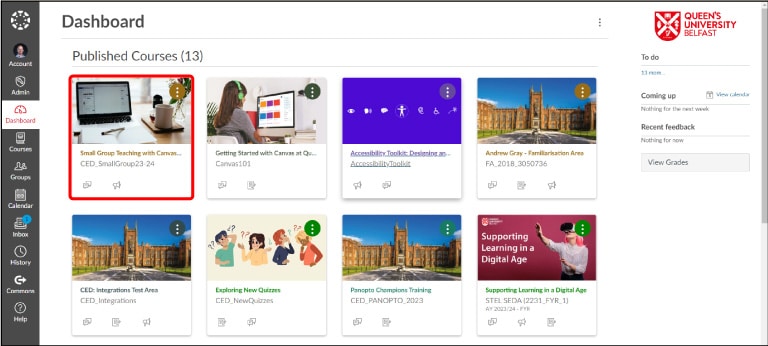
From your Canvas dashboard, navigate to last year’s Canvas course

  1. Click on ‘Panopto Video’ in the course navigation menu
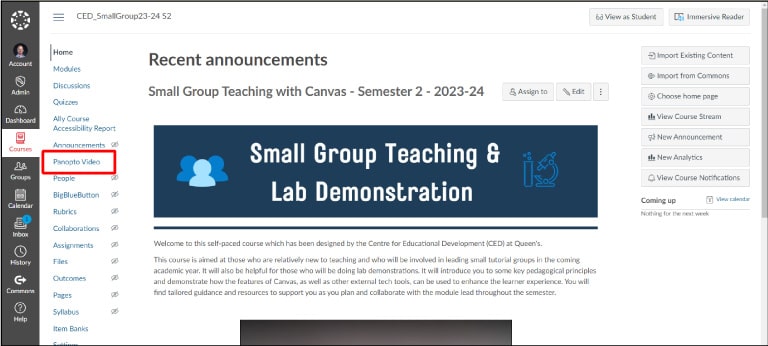
Click on ‘Panopto Video’ in the course navigation menu

  1. Hover over the video that you want to copy and select the checkbox which appears in the top left corner of the video thumbnail. You can select more than one if copying multiple videos.
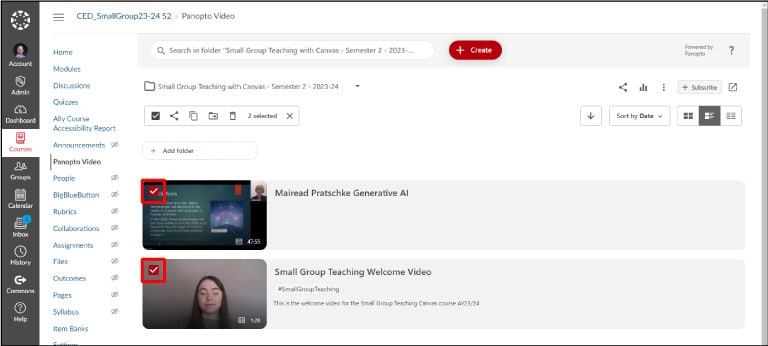
Hover over the video that you want to copy and select the checkbox which appears in the top left corner of the video thumbnail. You can select more than one if copying multiple videos.

  1. A toolbar will appear at the top of the video list. Click on the copy icon in the toolbar
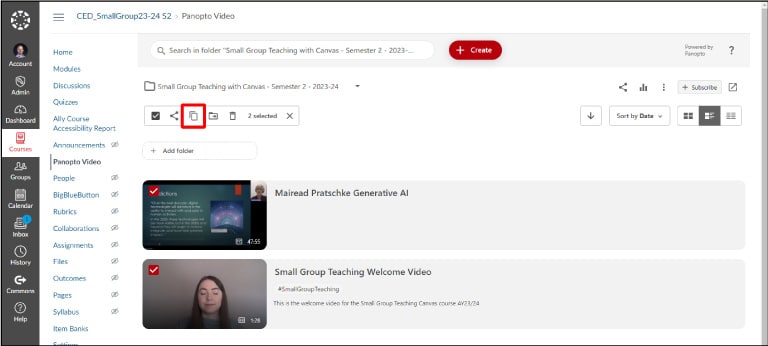
4. A toolbar will appear at the top of the video list. Click on the copy icon in the toolbar

  1. You will now be asked where you want to copy the video(s) to. You can either select the Canvas course from the drop-down list or start typing the name of the Canvas course to find it. Make sure you choose the correct course!
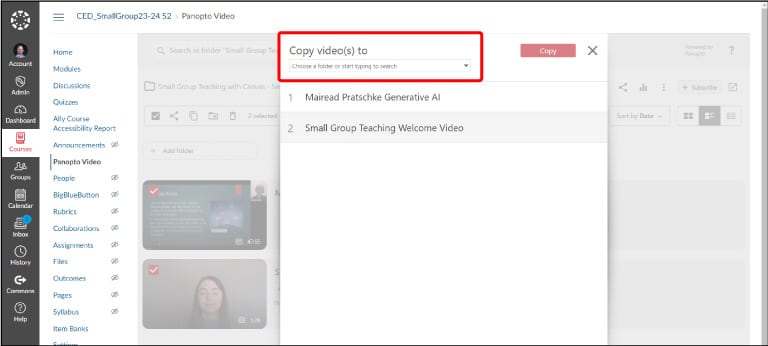
You will now be asked where you want to copy the video(s) to. You can either select the Canvas course from the drop-down list or start typing the name of the Canvas course to find it. Make sure you choose the correct course!

  1. Click on the red ‘Copy’ button. Once the green checkmarks appear beside the video titles, you can exit this window as this means that the copy is complete.
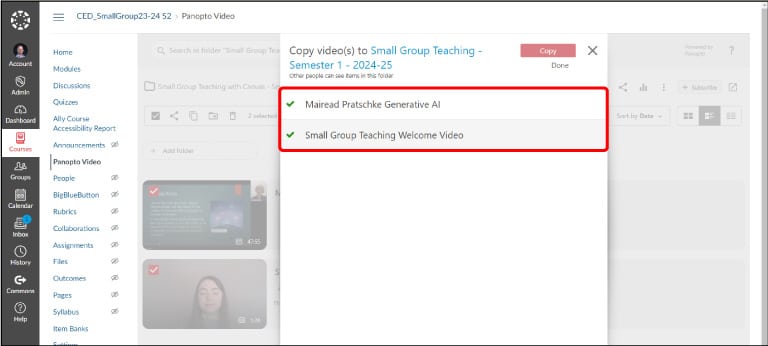
Click on the red ‘Copy’ button. Once the green checkmarks appear beside the video titles, you can exit this window as this means that the copy is complete

  1. Check that the videos copied over correctly by opening the new Canvas course and navigating to the Panopto Video area. Your copied videos will be listed. You will see the ‘reference copy’ symbol in the bottom righthand corner of each video thumbnail to remind you that this is a reference copy of the original video hosted elsewhere. Learn more about reference copies here.
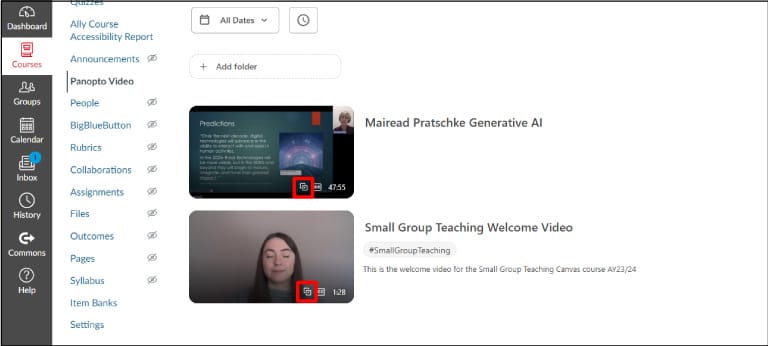
You will see the ‘reference copy’ symbol in the bottom righthand corner of each video thumbnail to remind you that this is a reference copy of the original video hosted elsewhere.

  1. From your Canvas dashboard, navigate to this year’s Canvas course
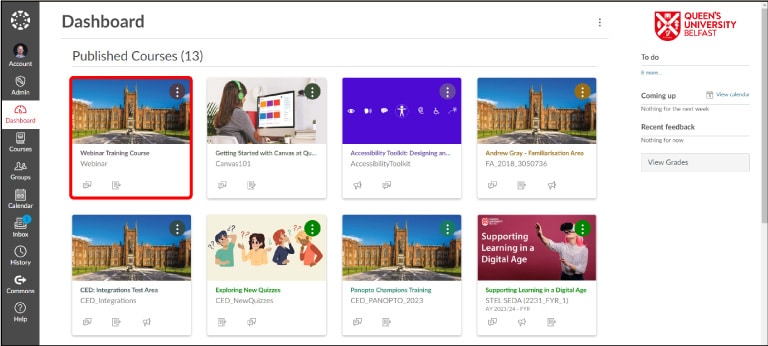
From your Canvas dashboard, navigate to last year’s Canvas course

  1. Click on ‘Panopto Video’ in the course navigation menu
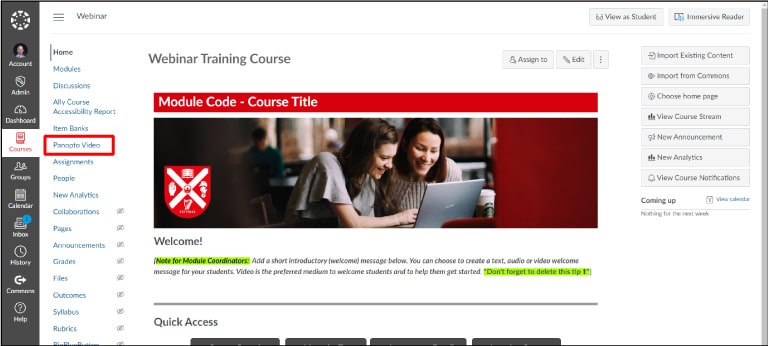
Click on ‘Panopto Video’ in the course navigation menu

  1. Go to your Panopto folder settings by clicking on the ellipsis on the top righthand corner and then on ‘Settings’.
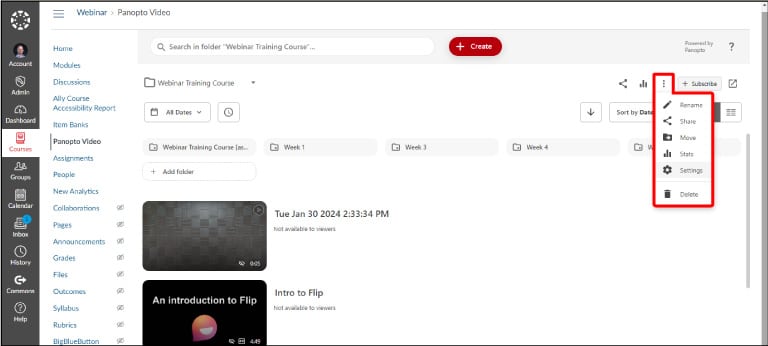
Go to your Panopto folder settings by clicking on the ellipsis on the top righthand corner and then on ‘Settings’

  1. In the ‘Course Video Copy’ section, check the box for ‘Include scheduled recordings’ if you’d like to copy these as well.
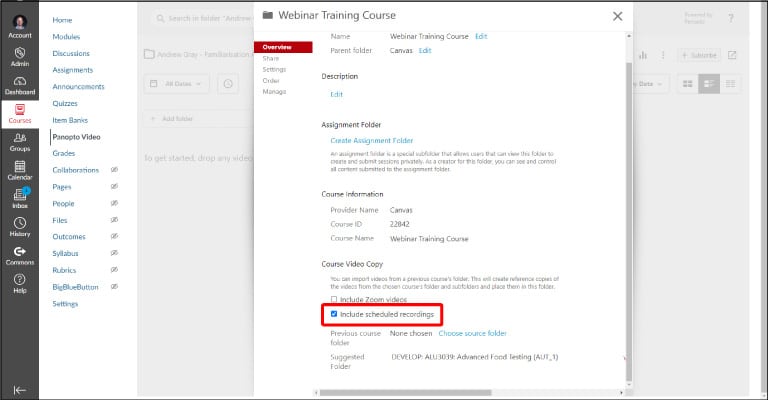
In the ‘Course Video Copy’ section, check the box for ‘Include scheduled recordings’ if you’d like to copy these as well

  1. Click on ‘Choose source folder’ to locate the videos from an old Canvas course 
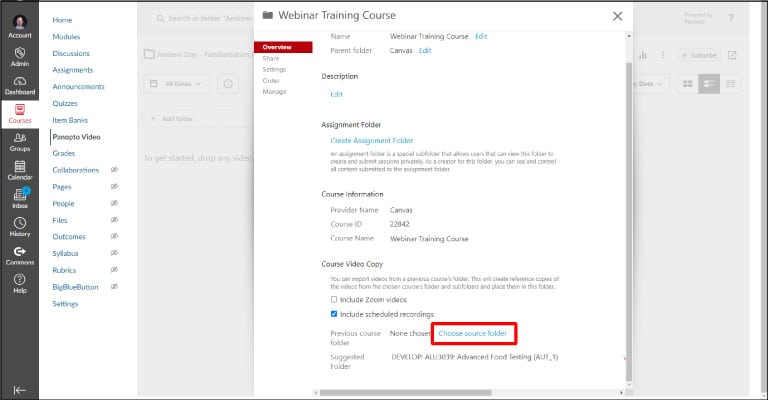
Click on ‘Choose course folder’

  1. Select the Canvas course from which you’d like to copy the videos from the list or type the name of the course to find it. Then click on ‘Begin folder copy’.
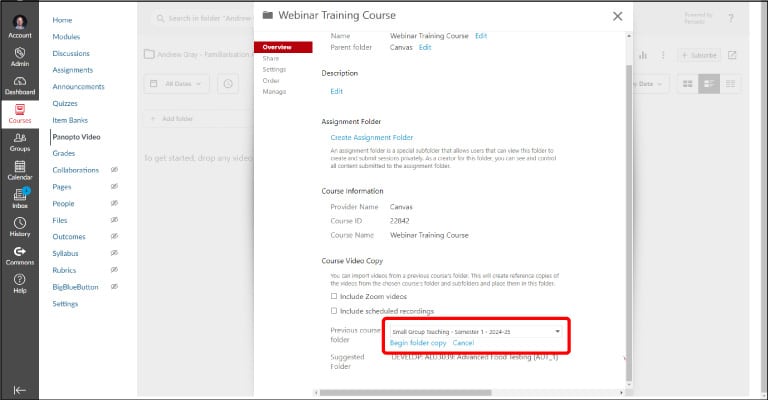
Select the Canvas course to which you’d like to copy the videos from the list or type the name of the course to find it. Then click on ‘Begin folder copy’

You will see a message to say that ‘A course copy job for this folder is currently in progress’. Most course copy operations should be completed within 24 hours. If the copied videos do not appear in the new Canvas course after 24 hours have passed, contact panopto-support@qub.ac.uk for help.
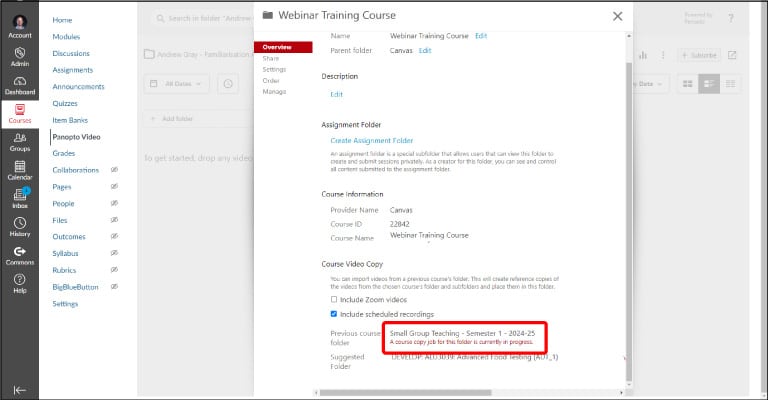

You will see a message to say that ‘A course copy job for this folder is currently in progress’.

Re-embedding and re-linking

📢 Copied videos will appear in the ‘Panopto Video’ area of the new Canvas course. However, students may not be able to view embedded video content or video links within Canvas pages, since these will be pointing back to the old Canvas course. It is therefore crucial that, as a final step, you go through your Canvas pages in the new course and update any embedded videos or video links to make sure that students on the new course can view them.

Help and Support

Queries about the copying process can be directed to QUB’s Panopto Support Team: panopto-support@qub.ac.uk