



- Locate the Microcredentials Template in Canvas Commons (located in the Global Navigation menu on the left of the screen).
- Search for QUB Microcredentials Template
The following symbol indicates a Module on Canvas Commons:
- Once you have located the correct content in Canvas, select the Import/Download button on the right hand side.

- Select your course from the list or use the search bar to locate your course, and scroll down to select Import into course. Before selecting "Import into Course", please ensure that only the required and intended course is selected.

- If your DEVELOP space (Module Development Area) already contains course content, import individual canvas modules from Canvas Commons -this will prevent your existing course content being overwritten.
- Locate the Microcredentials Template in Canvas Commons (located in the Global Navigation menu on the left of the screen).
- Search for one of the following Microcredentials Template module names:
- QUB Microcredentials Template: Course Overview
- QUB Microcredentials Template: Module Example 1
- QUB Microcredentials Template: Module Example 2
- QUB Microcredentials Template: Additional Template Pages
The following symbol indicates a Module on Canvas Commons:
- Once you have located the correct content in Canvas, select the Import/Download button on the right hand side.
- Select your course from the list or use the search bar to locate your course, and scroll down to select Import into course. Before selecting "Import into Course", please ensure that only the required and intended course is selected.
- Repeats steps 3-5 for each individual module.
The following is a checklist of initial steps to complete when importing the Microcredentials Template from Canvas Commons. Completing these steps will ensure the template is ready to use and course content can then be added.
- Change the Course Banner image on the Homepage (see videos below).
- Change the Course Card image (see video below). You can access templates for banners and course cards in the Microcredential Template Design Assets folder.
- Update the Learning Content button on the Homepage (this applies to Option 2 only). Please note that the html code needs to be updated to maintain the formatting of the button - if you would like help with this, please contact elearning@qub.ac.uk
- The Homepage should be set as the ‘Front Page’ of your course. Select the 3 dots on the top right-hand corner of the screen and set ‘Use as Front page’ (see video below). This will already be set if you have imported the template as a full course as per Option 1.
- If required, change the Course Navigation Menu - go to Settings > Navigation, and re-order as required (see video below).
- Once you have imported the template and completed the steps above, click Edit in the top right corner of any page to begin editing and adding content.
- Explore the guidance in Using the Template Pages below for more information on the template content and how to start adding your course content.
The following videos provide demonstrations of some of the steps above. Click on the Playlist Icon  to view or minimise the playlist menu.



Click on the Playlist Icon to view or minimise the playlist menu.

Sections in Canvas are administrative sub-groups that indicate how students are enrolled on a course. It allows module convenors to identify different groups of students (for example, tutorial groups) and use this information to communicate with different cohorts, set differentiated due dates for assignments, and more.
In the case of combined modules, for example, Sections indicate if the student enrolled is a student who began their studies in January (Known as a ‘January Intake’ student or in September (Known as a ‘September intake’ student). January intake students will be enrolled in the section JN01 and September intake students will be enrolled in the section SP01. Students taking the course as a Microcredential will be indicated by the Section code MC01.
Sections can be found by clicking People in the course navigation menu, which will display a table containing the names students and staff registered on your course, their Section(s), and their role (Student, Teacher etc.).
Depending on your module delivery, some Microcredential students may study remotely while others attend on-site. Use Sections to distinguish between these cohorts and restrict access to online lectures to distance learners only. In this case, live lectures should be delivered using Microsoft Teams; step-by-step guidance is available in the 'Live Lectures in Teams' section of this toolkit.
See below for more examples of how Sections can be utilised to communicate with students and organise your course.
Announcements are a useful way of sharing important information with students taking your course.
You can send an Announcement to all students, or to different cohorts (Sections) of students, including students taking your course as a Microcredential.
- Select Announcements in the Course Navigation Menu.
- Click Add Announcement.
- Add your title, content, and any attachments or additional settings as required.
- In the Post to option, you can choose to post your announcements to All Sections (all students enrolled to your course), or a specific Section (for example MC01 for students taking your course as a Microcredential).
Depending the nature of your course, you may wish to make some content available to different cohorts of students. This can be done by assigning access to different modules or pages.
Assign access to a Page:
- Click Edit on the relevant Page.
- Under Assign Access, select Everyone or select a specific Section from the drop-down menu.
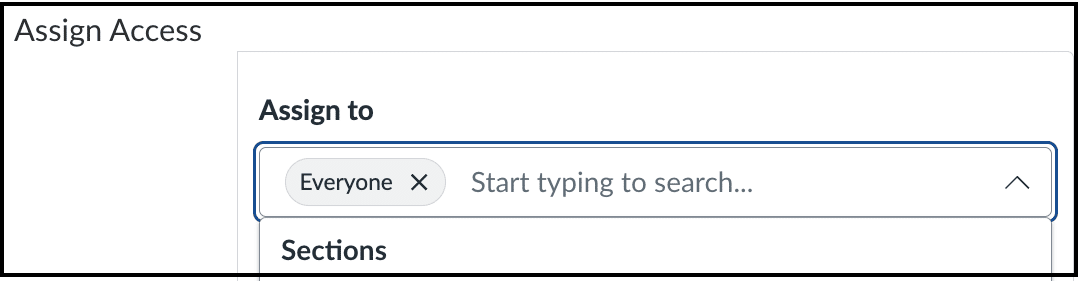
- You can also set start and end dates and times to control when the content becomes available and when access closes.
Assign access to a Module:
- Select Modules in the Course Navigation Menu.
- Find the relevant module - click the ellipsis menu and select Assign to...
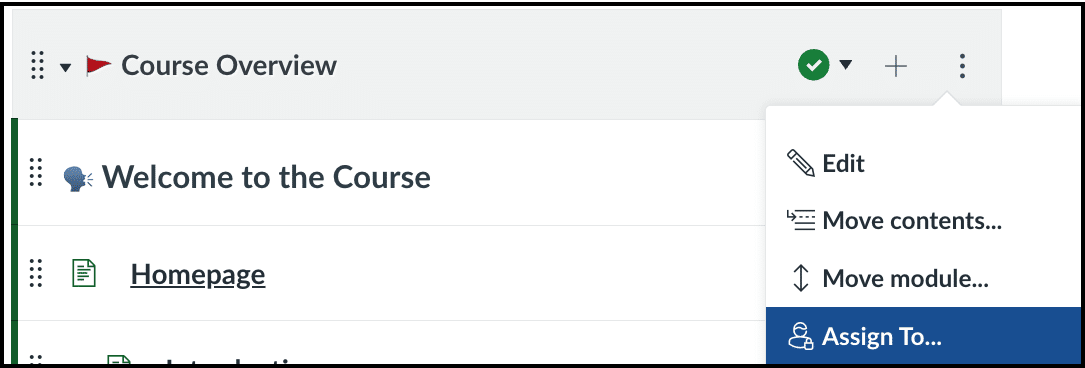
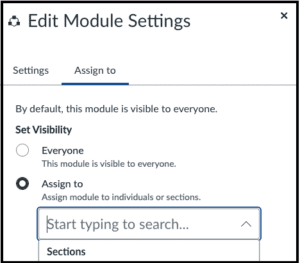
- Set Visibility of the module of Everyone, or select Assign to for specific Section from the drop-down menu.
Depending the nature of your course, you may wish to assign different assignments and quizzes to different cohorts of students, or to set differentiated due dates. This can be done via the Assign access option when setting up assignments or quizzes.
Assign Access in Assignments and Quizzes:
- Click Edit in the relevant Assignment or Quiz.
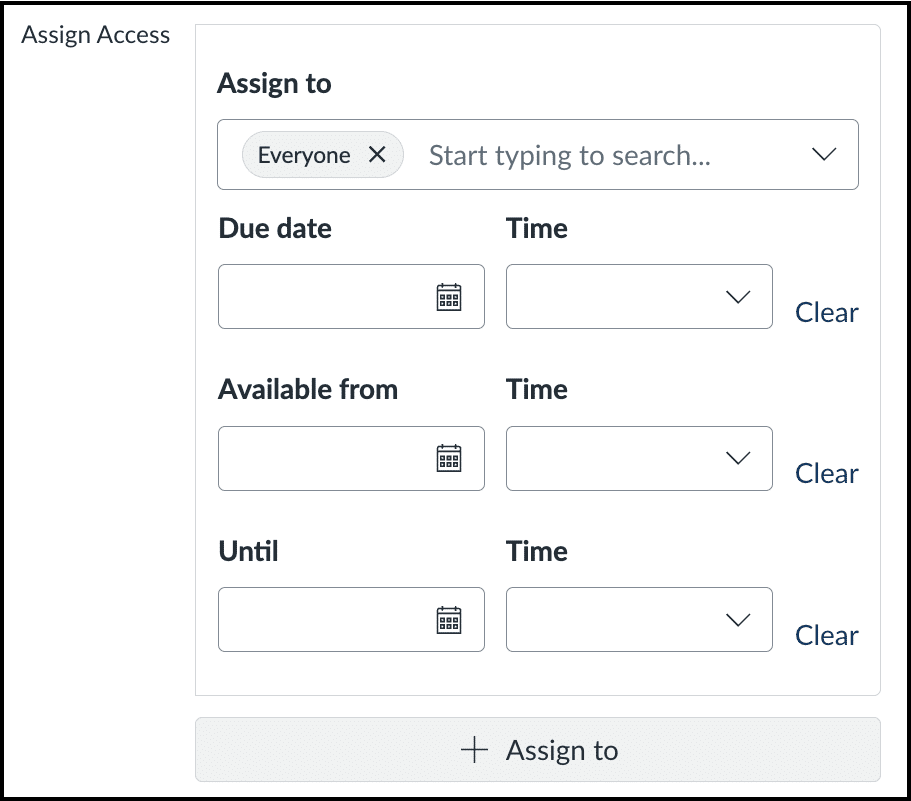
- Under Assign Access, you can assign the assignment or quiz to Everyone (all students enrolled in your course), or to a specific Section via the drop-down menu.
- Set additional settings such as due date and time, available from (date and time), and available until (date and time). You can set differentiated due dates for the same assignment or quiz by clicking the + Assign to button.
For more detailed information on setting up assignments and quizzes, explore the Canvas Training video catalogue:
You may wish to set up your Canvas course so that you can track how much of the course each student has completed. This can be achieved by adding Requirements to each Canvas module. Requirements allow you to specify actions that students must complete, such as viewing a page, marking a page as done, or completing another activity. If necessary, learning content can be locked until certain actions are completed. Once requirements are set, you will be able to track students’ progress through the course via the View Progress button (see below).
Setting Requirements
- Go to the Modules section of course. Select a module, click the ellipsis on the right hand side, and click Edit.
- Click the + Requirement button. (Prerequisites can also be set if required).
- You can decide if the student has to Complete all of the requirements you set, or to Complete one. You can also decide whether or not the Students must move through requirements in sequential order.
- One requirement can be set for each content item within your module. Select the Page, Quiz, Discussion or Assignment from the first drop-down menu. Then select the requirement from the second drop-down menu.
- Different options will be available, depending on the learning content you select. For example, the options for Page are: 'View this item', 'Mark as done', or 'Contribute to the page', and the options for Quiz are: 'View the item', 'Submit the assignment', or 'Score at least...'
- Click the + Requirement button again to set additional requirements. Click Save when you are done.
Viewing Student Progress
Once requirements are set up, you can view the progress of students by clicking the View Progress button at the top of the Modules page. A list of students will appear on the right hand side - select the student you wish to view.
For additional insight into how students are interacting with your Canvas course, you can access Course Analytics. This provides data on page views, participation, assignment submissions, and other metrics that may help you assess student engagement and identify where additional support may be needed.
While Course Analytics can offer useful insights, it may not provide the full context, so it is important to consider other factors and gather additional information to develop a more complete understanding of students’ participation in your course.
Watch the following video for an overview of the data available in Course Analytics.
As some Microcredential students may be taking your module remotely, there may be a need to deliver lectures online while simultaneously teaching the remaining cohort of students on-site. It is recommended that online delivery of live lectures in this instance is done using Microsoft Teams. This ensures that the online live lecture can only be accessed by those taking your module as a Microcredential.
The steps below outline how to facilitate online delivery for Microcredential students only.
- Within Microsoft Teams, navigate to Calendar and schedule the class at the appropriate date and time. Add a title for the meeting. Do not add any attendees in the Invite required attendees field. Enable the Teams meeting option. Once all details have been added to the meeting, select Save.
Note: it is crucial that this is done using your personal calendar rather than using the ‘Schedule a meeting’ option within the ‘Team’ for the class. This will prevent the on-site students from accessing the link to the meeting.
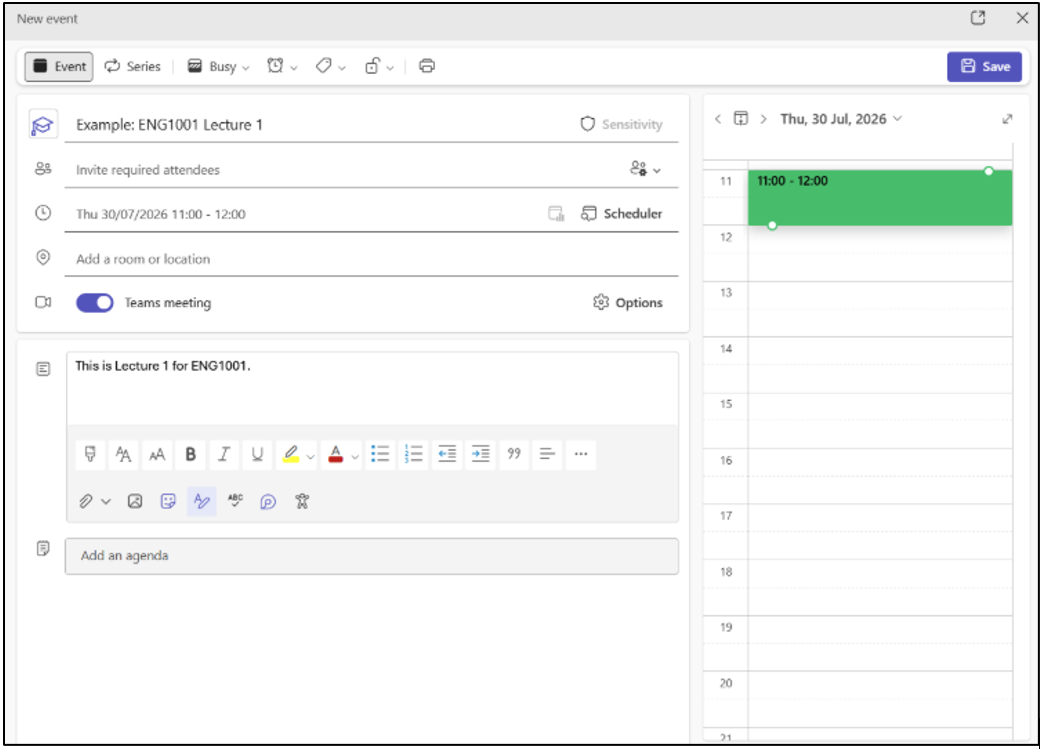
- . Once the meeting has been created, Copy the Teams Meeting link.
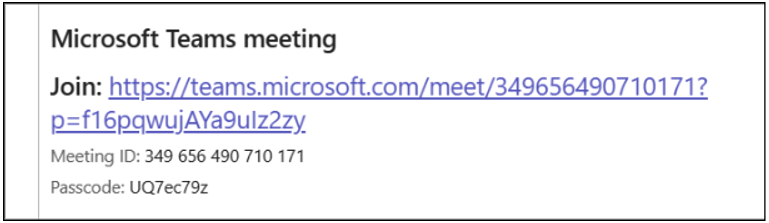
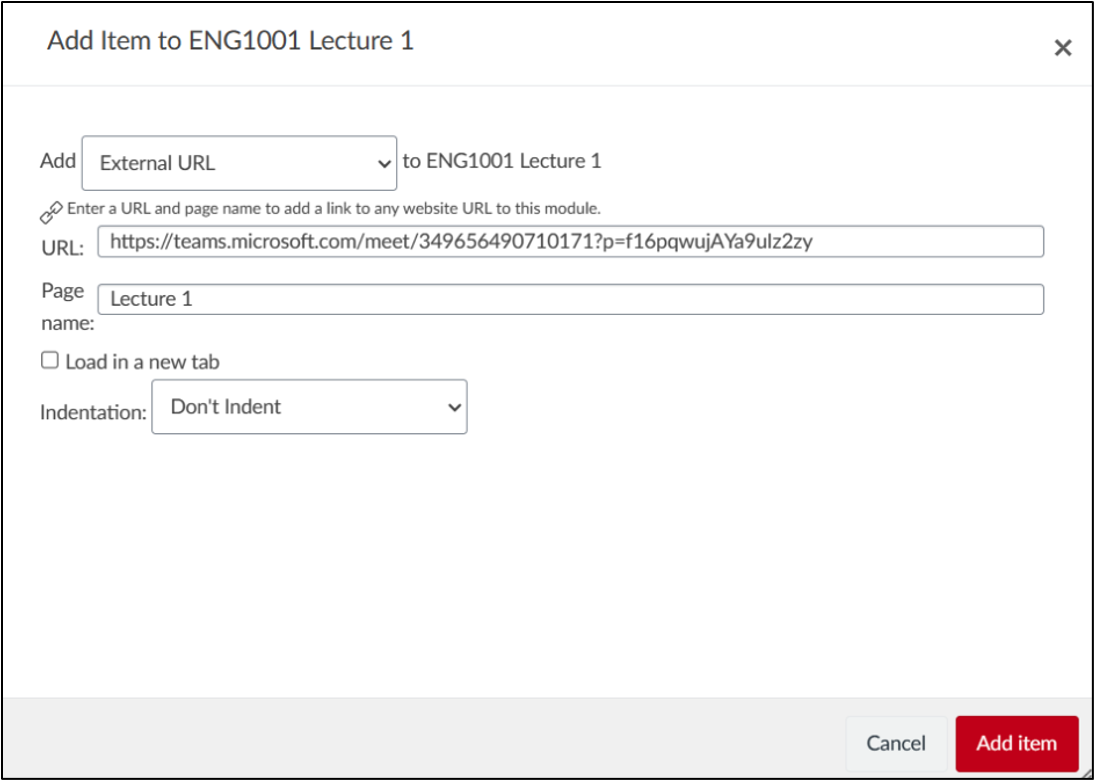
- Navigate to Canvas and select the module that the meeting is created for. Navigate to Modules and then select + Module and add a module. Give the module an appropriate name and then add a module item using the + icon. Select the External URL option and then paste the link copied in Step 2 into the URL field. Add an appropriate Page name and then select Add item.
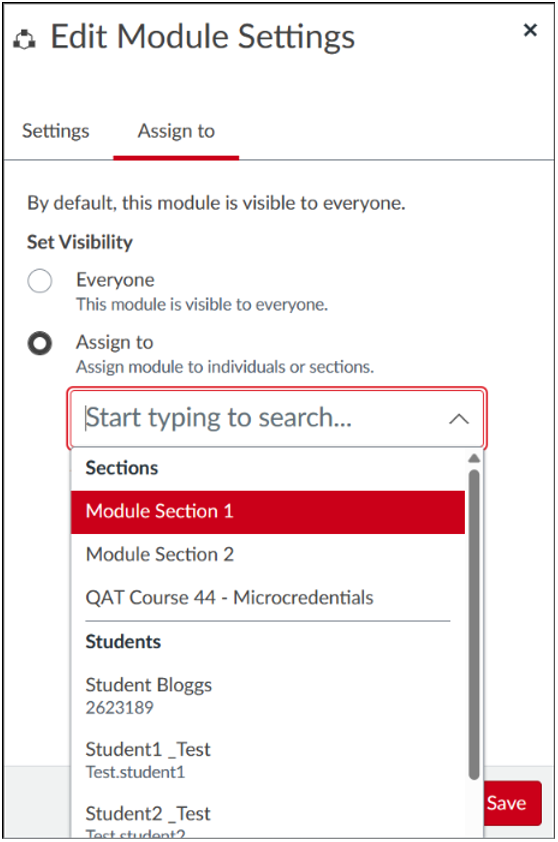
- Select the ellipsis icon beside the Module section and select Assign To. From the Edit Module Settings pop-up window, select Assign To and then select the relevant module section that you wish to have access (in the case of Microcredentials students, this will normally be ‘MC01’). Once selected, select Save.
Recorded teaching can involve content created by others, such as images, diagrams, quotations, articles, video clips and other published materials. These are often protected by copyright. As outlined in the QUB Recording of Teaching Policy, staff presenting third-party content within a recording must ensure they do not infringe copyright and provide appropriate citations where required. This supports the University’s obligations under the Copyright, Designs and Patents Act 1988.