
Lecture Recording at Queen’s: What’s Changing?

As part of Education Strategy 2030, a new Recording of Teaching Policy has been developed under the Digital Transformation in Education workstream. The policy is designed to improve accessibility, promote flexible learning, and support students in being able to review key teaching content.
From Semester 1 AY25/26, scheduled lecture recording will be introduced. This means staff no longer need to set up recordings manually, saving time and making it easier than ever to share recordings with students.
powered by Advanced iFrame
Watch the Recording of Teaching Policy Overview video on Panopto
What Scheduled Lecture Recording Means for Teaching Staff
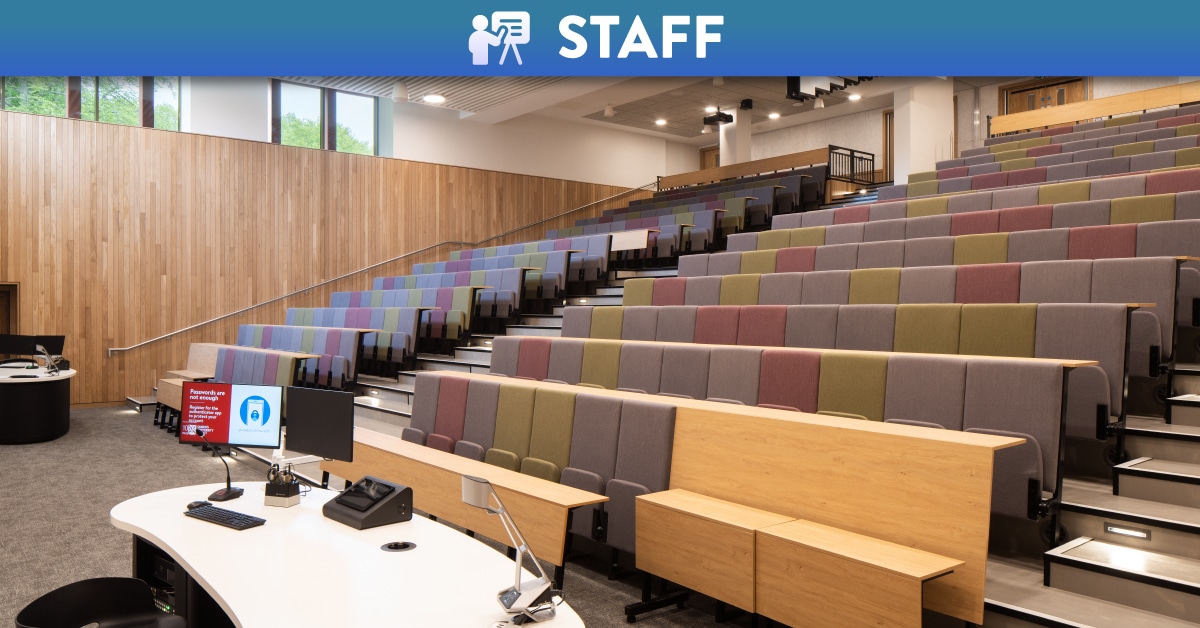
From Semester 1, all lectures taking place in centrally bookable teaching spaces will be recorded automatically with Panopto. Other live teaching formats — such as tutorials, seminars and workshops — are excluded.
Key features:
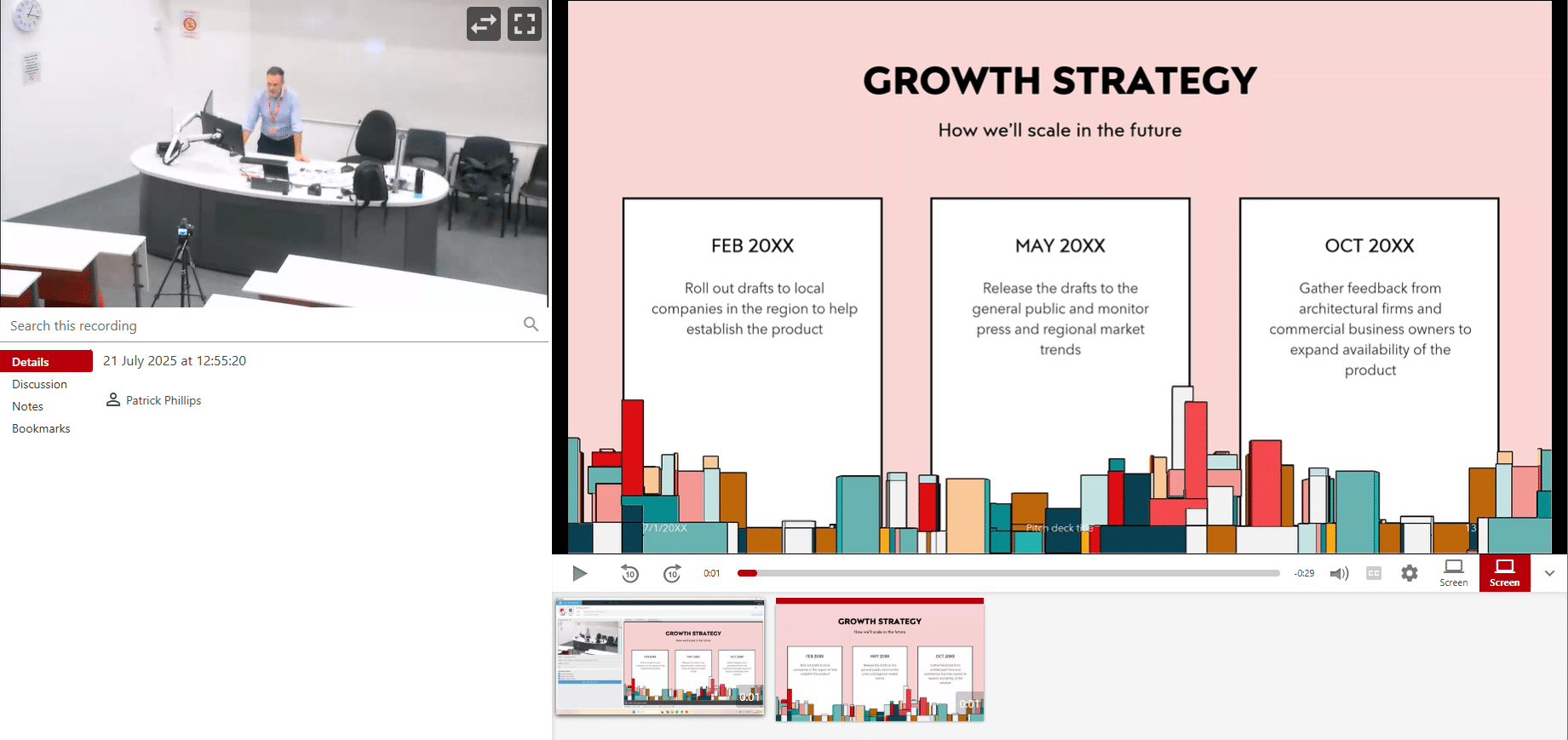
No setup needed – recordings start 5 minutes after your lecture begins and stop 5 minutes before it ends.
Automatic upload – recordings appear in your Panopto folder in Canvas, ready to be embedded in course content.
Controlled access – only enrolled students and staff on the module can view the video.
48-hour privacy window – recordings remain hidden until you release them, giving you time to review or edit.
Full control in the room – recordings can be paused or stopped at any time using simple keyboard shortcuts.
Lecture recordings include audio, video of the presenter and screen content (e.g. slides) and a recording light will indicate when a recording is taking place:
- 🔴 Red = Recording in progress
- 🟡 Yellow = Recording paused
- 🔵 Blue = Error
Staff retain full discretion to opt out of recording for any reason, including pedagogical, privacy or personal reasons. The Panopto Automated Scheduling Tool on Queen’s Online is where you can confirm recording preferences or opt out if needed.
🔗 View step-by-step instructions on how to use the Panopto Automated Scheduling Tool
What Do Schools Need To Do?
Schools play a key role in ensuring that scheduled lecture recording goes smoothly. They are asked to:
✅Check and Clean Up Timetable Data: Scheduled recording is based on the central timetable system. School support staff must ensure timetable information is correct. Timetable corrections must be submitted via the usual Change Request form on QOL and changed in the QSIS Course Catalog.
✅ Raise Awareness: Schools should make sure teaching staff are aware of the changes and the opt-out mechanism in place. Schools should issue reminders at the start of term and support local discussions where needed.
What Does This Look Like In Practice?
Here’s an example of how scheduled recording works in a typical lecture scenario.
Dr Wilson delivers a 1-hour lecture on Monday at 10am in the PFC. She has not opted out of recording.
Before the lecture
- The session is accurately marked as a 'lecture' (LT) in the timetable
- Panopto schedules the recording automatically
During the lecture
- Recording begins at 10:05am
- A red light confirms that recording is in progress
- At 10:25am, Dr Wilson pauses the recording using the keyboard shortcut and the light turns yellow
- She resumes recording a few minutes later and the light turns red again
- Recording stops automatically at 10:55am
After the lecture
- The video uploads to the relevant Panopto folder in Canvas
- It remains hidden from students for 48 hours. Dr Wilson decides that review/editing is not required
- She takes a few moments to embed the video in the appropriate Canvas page so students can locate it easily
- At 10am on Wednesday, the recording becomes visible to students
FAQs
Yes. If you prefer to manage your own recordings, whether using Panopto, MS Teams, or other tools, you must opt out of scheduled lecture recording via the Panopto Automated Recording Tool on Queen’s Online. You can then manage lecture recording yourself.
Opting out is recommended in the following scenarios:
- You have pedagogical, privacy or personal reasons not to record a lecture
- You are using an alternative recording platform such as MS Teams
- You are teaching in a non-standard room or using specialist equipment i.e. your own device
Yes. Only activities labelled as a 'lecture' (LT) in the central timetable will be recorded by default. Seminars, labs, tutorials, and other live teaching types are not included and are not expected to be recorded.
Lecture recordings are based on the central timetable. Please ensure any changes are submitted promptly and that the timetable is updated.
Yes. You can use keyboard shortcuts to pause or stop a recording. Signage in the room will indicate how to do this.
No. The recording of teaching does not require student consent. Lecture recordings that include video will predominantly record the presenter area rather than students. In teaching rooms with audience engagement facilities, students may be recorded if this functionality is enabled by the lecturer via the touch panel. Staff may pause or edit the recording if needed i.e. to exclude a student contribution.
All centrally supported teaching spaces display a recording status light at the front of the room:
🔴 Red = Recording in progress
🟡 Yellow = Recording is paused
🔵 Blue = Error
Need Help?
For questions regarding School-specific application of the Recording of Teaching Policy, local discussions within Schools or programme teams are encouraged.
For anything else, contact:
- Panopto or scheduling tool queries: panopto-support@qub.ac.uk
- Teaching room setup (mics, cameras, equipment): avs@qub.ac.uk
- Pedagogic guidance or policy queries: ced@qub.ac.uk