

Using the Panopto Automated Scheduling Tool
From 15th September 2025, lectures in centrally bookable teaching spaces will be recorded automatically using Panopto. By default, all lectures are set to record. The Automated Scheduling Tool on Queen’s Online brings your upcoming recordings together in one place and gives you full control to:
Confirm that lectures are scheduled correctly.
Adjust settings for single or multiple modules.
Opt out of specific sessions where needed.
If you don’t want a lecture to be recorded, you must use the tool in advance to change the setting.
When You Might Opt Out
Not every lecture should be recorded. You may wish to opt out for a range of reasons, including:
- Pedagogic reasons – e.g. teaching style or activity unsuitable for recording.
- Legal, ethical, or privacy reasons – e.g. sensitive content.
- Personal reasons – e.g. comfort level.
- Alternative recording method – e.g. using non-standard equipment such as your own device, or a different platform such as MS Teams.
The Scheduling Tool gives you the flexibility to make these changes quickly and easily.
Watch the Video Walkthrough
Before following the step-by-step instructions below, watch this short demonstration of the Scheduling Tool in action:
powered by Advanced iFrame
View the Scheduling Tool demo on Panopto
Key Points to Remember
- Automated scheduling only applies to classes labelled as a ‘lecture’ (LT) on the central timetable system. Other teaching formats (e.g. tutorials, seminars, workshops) are excluded.
- Schools must ensure timetable data is accurate and kept up to date.
- You can apply settings for an entire lecture series or for individual lectures.
- Changes can be made up to 1 hour before the scheduled lecture start time.
- Staff with a Teacher, TA, or Designer role in QSIS can manage settings for a module. A timestamp will reveal who changed the settings and when.
Step-by-Step Instructions
- Log in to Queen’s Online
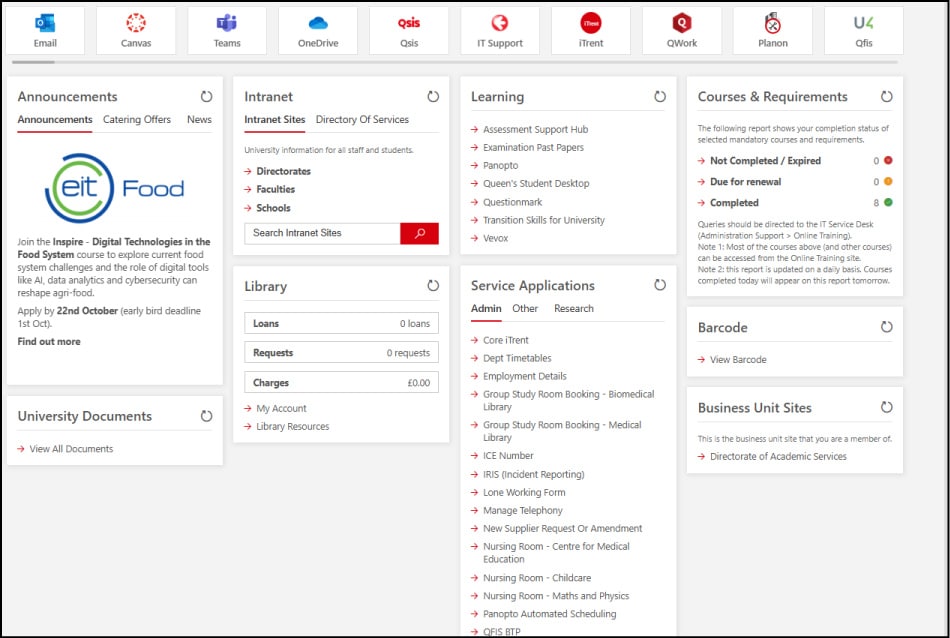
- Go to Service Applications → Admin Tab → Panopto Automated Scheduling.
- Manage settings for an individual module (i.e. HIS1001) → Go to Step 3.
- Manage settings for all your modules at once → Go to Step 4.
⚠️ Important: If a module is team-taught (i.e. multiple teachers on the same module with different recording preferences), do not use the bulk option. Bulk settings apply to every lecture and may overwrite settings already applied by colleagues.
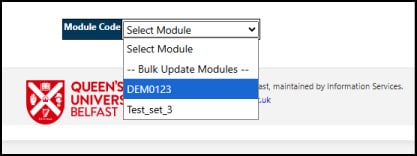
- Select your module from the drop-down. If your modules do not appear, simply log into Panopto first (http://qub.cloud.panopto.eu/) and then return to the Scheduling Tool.

- Under Automation Status, choose your setting:
- Fully Automated = All lectures for this module will be recorded
- Partially Automated = Lets you choose which lectures are recorded and which are not
- Not Automated = Turn off recording for all lectures in this module
⚠️ Important: If your module has multiple teachers with different recording preferences, you must select Partially Automated to customise the settings per lecture. Do not select Fully Automated or Not Automated as this will apply to all lectures in the module and may overwrite settings already applied by colleagues.
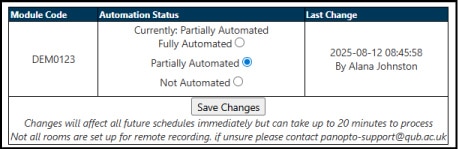
3. Click Save Changes. Changes can take up to 1 hour to take effect.

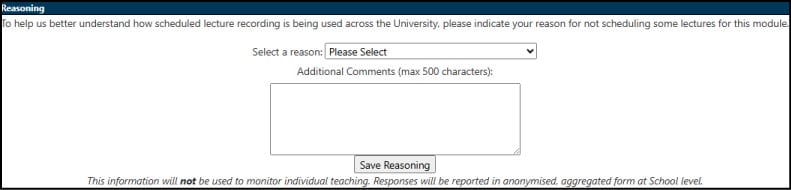
- If you select Partially Automated or Not Automated, you have the option of providing a reason. Click Save Reasoning.

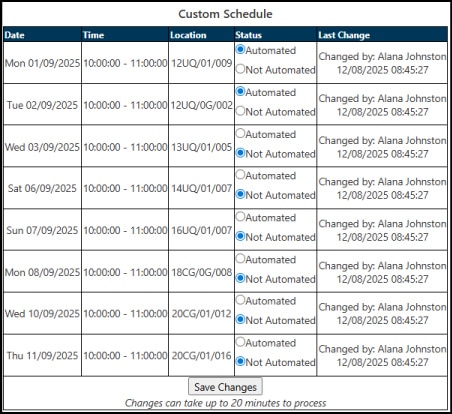
- Review the Custom Schedule to confirm your settings. Click Save Changes

- Repeat these steps for your other modules.
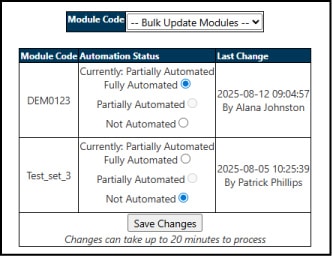
Use this option to quickly update all your modules at once by selecting either Fully Automated or Not Automated.
⚠️ Important: Do not use this option if your module is team-taught. Bulk settings apply to every lecture in the module and may overwrite any settings already applied by colleagues.
- Select Bulk Update Modules from the drop-down. If you don't see your modules listed, log into Panopto first (http://qub.cloud.panopto.eu/) and then return to the Scheduling Tool.
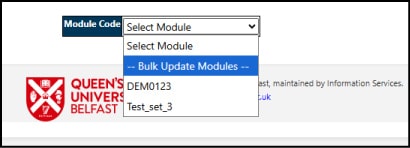
- For each module, choose:
- Fully Automated = All lectures for this module will be recorded
- Not Automated = Turn off recording for all lectures in this module
- Click Save Changes

Need Help?
For questions about using the Automated Scheduling Tool, contact Panopto Support: