


- Navigate to the Canvas page where you want the video to appear.
- Click Edit (top-right) to open the Rich Content Editor.
- Place your cursor at the point where you want the video to be embedded.
- Now click on the green Panopto icon in the toolbar

- Select the video from the list by clicking the radio button to the left of it.
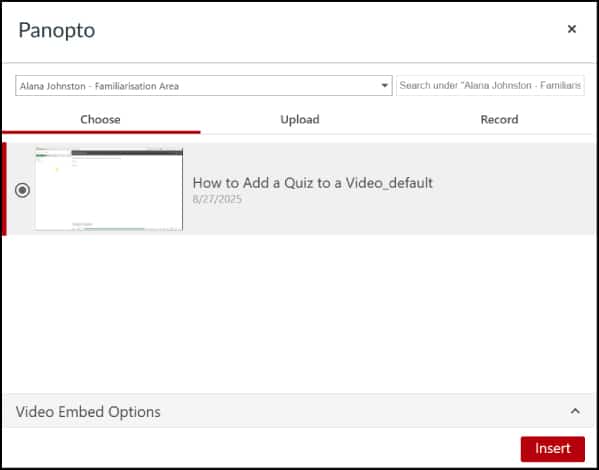
- Use the upward arrow to confirm your preferred embed settings. For example, you can determine how interactive you want the video to be. Learn more about video embed options.
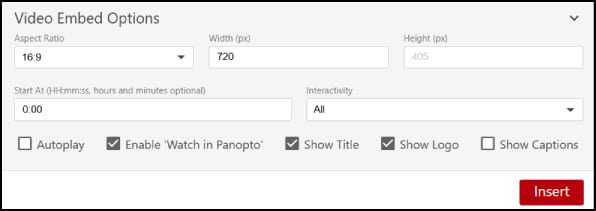
- Click Insert and then Save the Canvas page once you are finished editing it. The video will now appear on your Canvas page.
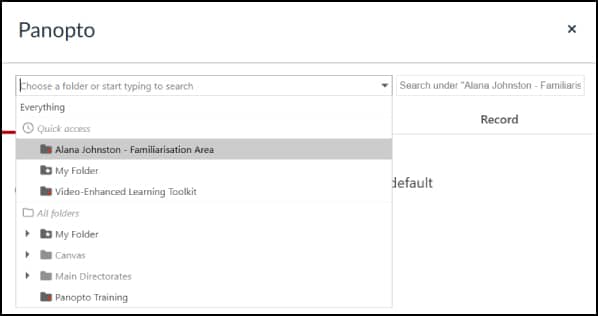
💡Tip: By default, when you embed a video in Canvas you’ll only see videos from the folder linked to that course. If you want to embed a video from another Panopto folder (for example, My Folder), use the drop-down menu to switch folders.
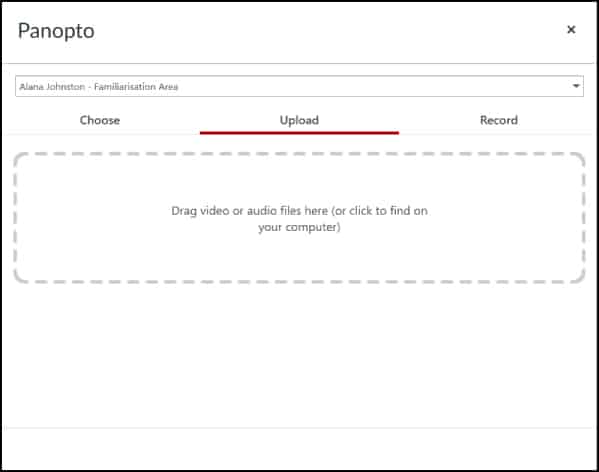
- Drag and drop your video file into the upload box, or click the box to locate it on your device.
- The file will upload (green progress bar) and then start to process.

- Once processing is complete (green tick), choose your preferred embed settings by clicking on the upward arrow.
- Click Insert and then Save the Canvas page once you are finished editing it. The video will now appear on your Canvas page.
- Enter a clear title for your video (Panopto defaults to current date and time).
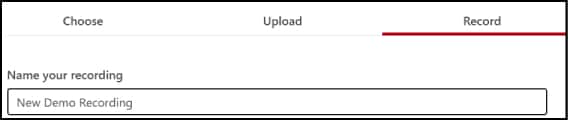
- Select your recording method:
- Panopto Capture: Browser-based, suitable for simple recordings. Learn how to use Panopto Capture here.
- Panopto App: Download required, best for more advanced recordings. Learn how to use the Panopto app here.
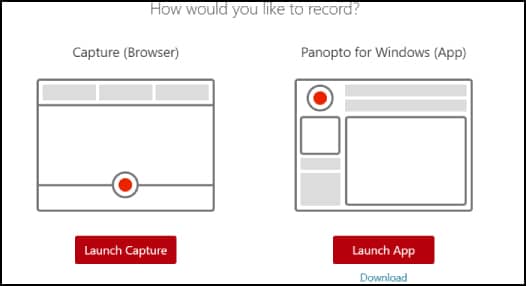
Note: The app is pre-installed on all centrally bookable teaching room PCs and is the default for lecture recording. You only need to download it if you want to use it on your own device. Alternatively, use Panopto Capture without needing to download anything.
- Record your video.
- Choose your preferred embed settings by clicking on the upward arrow.
- Click Insert and then Save the Canvas page once you are finished editing it. The video will now appear on your Canvas page.