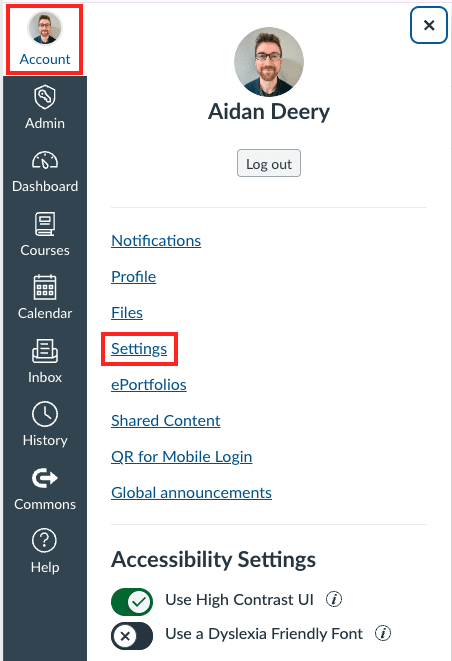
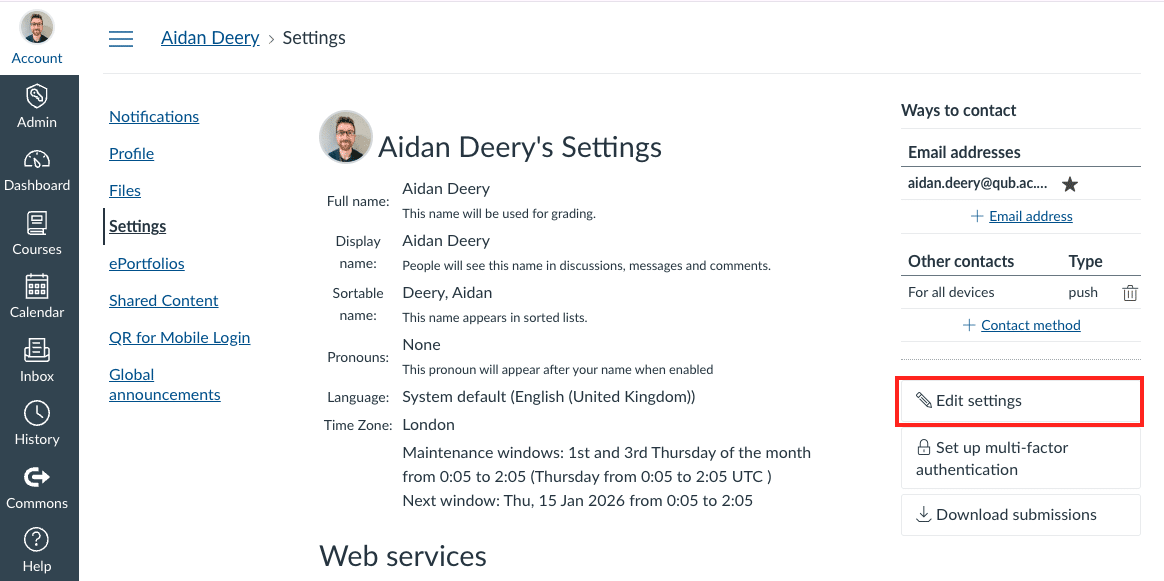
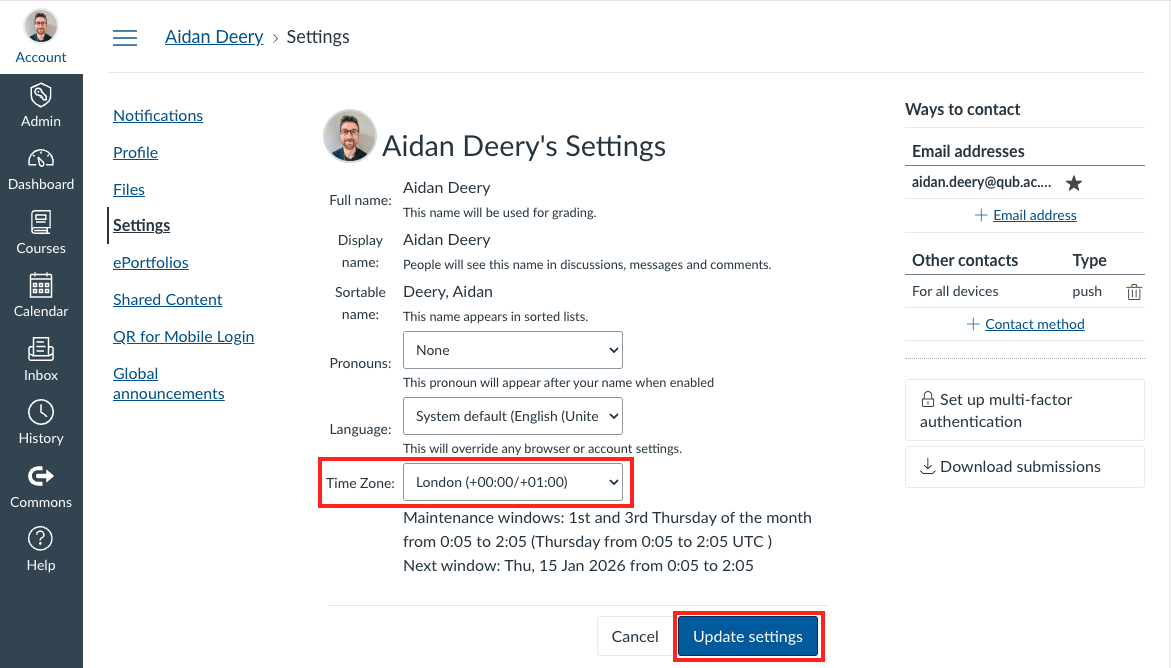
Canvas allows you to set your time zone to match your current location. If you are located overseas, it’s important to update this setting to ensure dates and times are displayed correctly, helping you avoid confusion and ensure you don’t miss any deadlines.
Accurate deadlines and due dates: Assignments, quizzes, and assessments are time-sensitive. Having the correct time zone ensures deadlines appear exactly as intended, reducing the risk of late submissions or missed assessments.
Correct scheduling of live sessions: Online lectures, tutorials, and virtual meetings display in your local time, helping everyone join sessions at the right time without manual conversions.
Consistency across devices and locations: Whether accessing Canvas from campus, home, or overseas, the correct time zone ensures a consistent experience across all devices.
Clear communication between staff and students: Announcements, feedback timestamps, and submission times are easier to interpret when everyone is viewing them in their correct time zone.
Reduced stress and confusion: Knowing that Canvas is showing the correct time helps staff and students plan their work confidently, particularly when travelling or studying remotely across different time zones.