
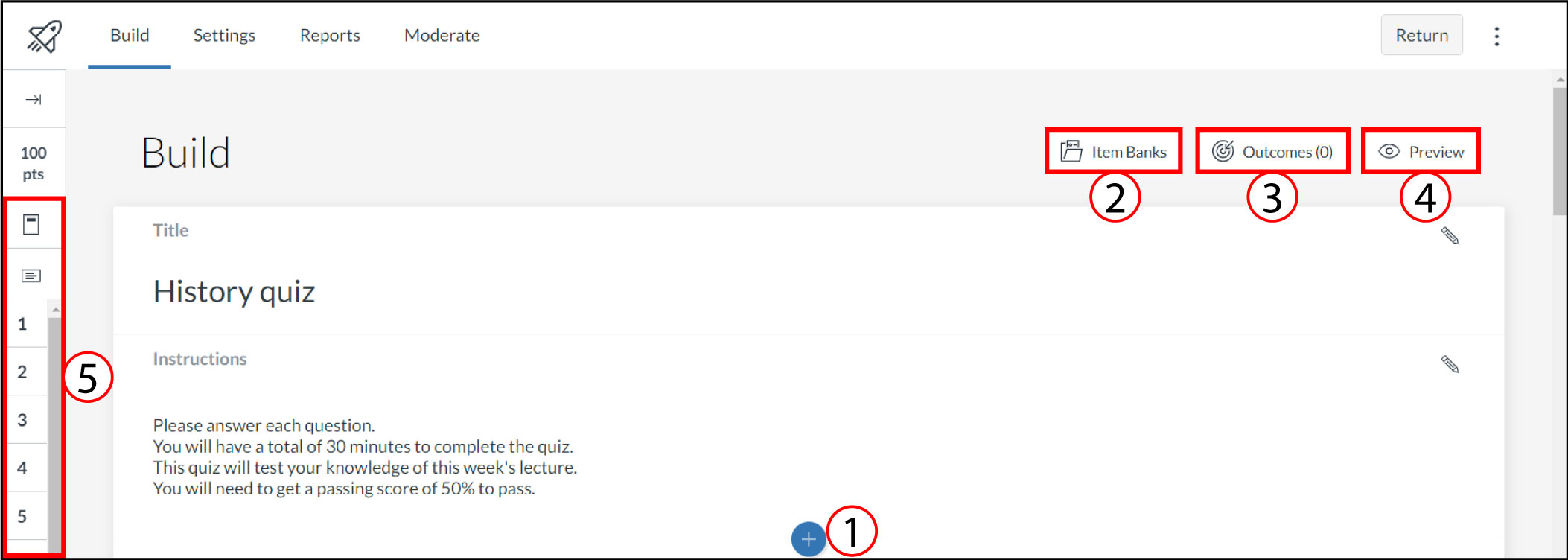
The Build tab allows you to add the title of your quiz and any instructions you might have. You will mainly use the Build tab to populate your quiz [1] with the different question types available. Here, you can view your item banks [2], align the quiz to outcomes [3], preview the quiz from the student view [4], and navigate the quiz [5].
You can use the Rich Content Editor to format and add content to your quiz instructions.
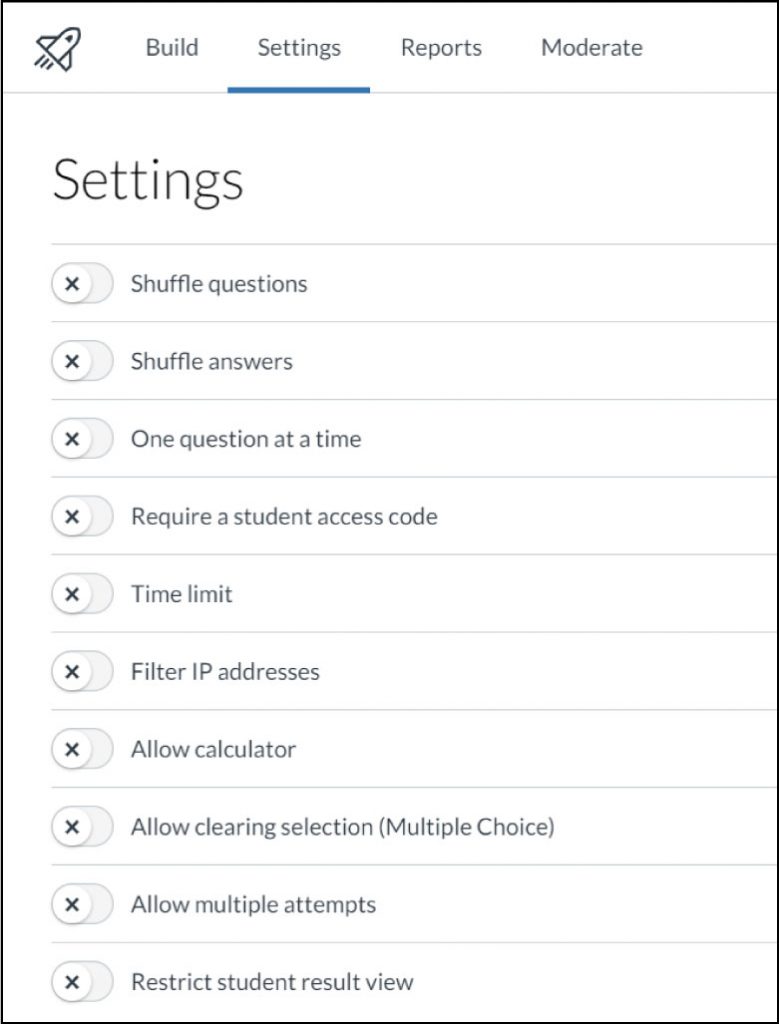
You can adjust delivery settings for a quiz in New Quizzes. These options adjust the way that a quiz is delivered to students.
Settings are mostly the same as classic quizzes but with a few additions. You can require a waiting period between student attempts, shuffle questions globally and shuffle answers per question.
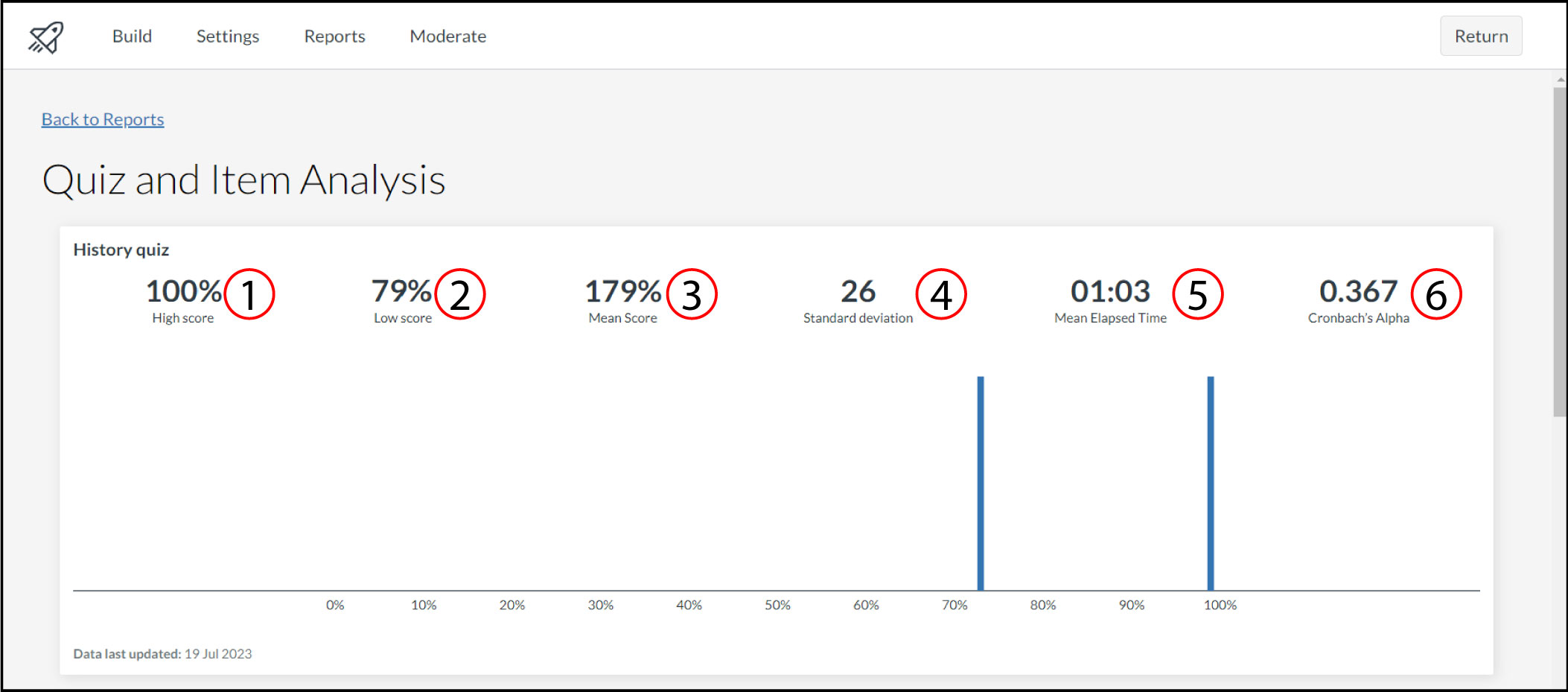
You can view reports for a quiz created in New Quizzes. The reports available in New Quizzes are the Quiz and Item Analysis and the Outcomes Analysis. The Quiz and Item Analysis report includes statistics for the entire quiz and individual items, such as:
- High Score [1]: displays highest percentage score
- Low Score [2]: displays lowest percentage score
- Mean Score [3]: displays average percentage score
- Standard Deviation [4]: represents the amount of variation from the mean score
- Mean Elapsed Time [5]: displays average time to complete quiz
- Cronbach’s Alpha [6]: measures internal consistency of how closely related a set of items are as a group
It may take up to 48 hours for quiz information to display in New Quizzes reports.
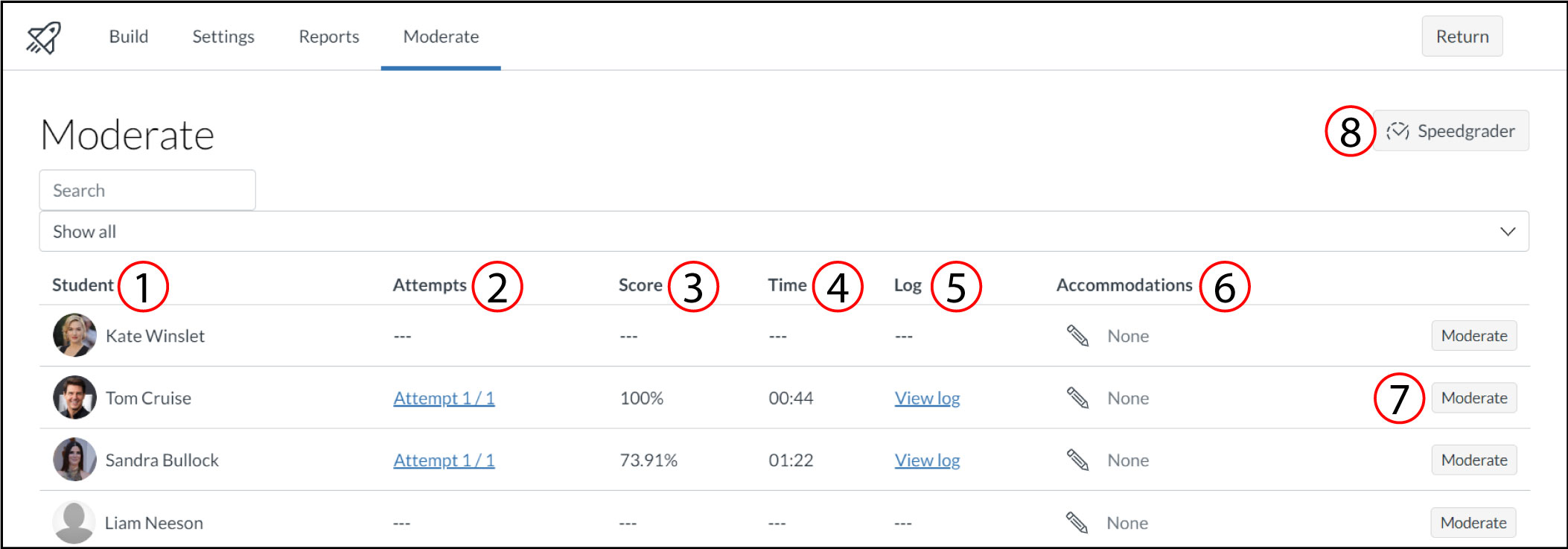
You can view student results for any quiz created in New Quizzes on the Moderation page. Quiz results also include a detailed log for each student.
The Moderation Page displays a list of students in the course [1], their quiz attempts [2], the score for each attempt [3], the time for each attempt [4], attempt logs [5], and quiz accommodations [6].
To moderate a quiz for an individual student, click the Moderate button [7]. Moderation options include managing timer settings and reopening a student's most recent attempt.
To open SpeedGrader, click the SpeedGrader button [8].
- In line with the ‘Assignments’ functionality, Teachers are unable to create a New Quiz when using the Canvas Teacher app.
- The New Quizzes Feature Comparison show the current functionality available in New Quizzes compared to the functionality in Classic Quizzes.
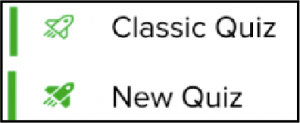
- Identify a classic quiz from New Quizzes in a course. The easiest way is if the rocket icon is an outline or filled as shown below:
- New Quizzes allows you to print assessments and save them as pdf files. This guide details the options for printing New Quizzes.
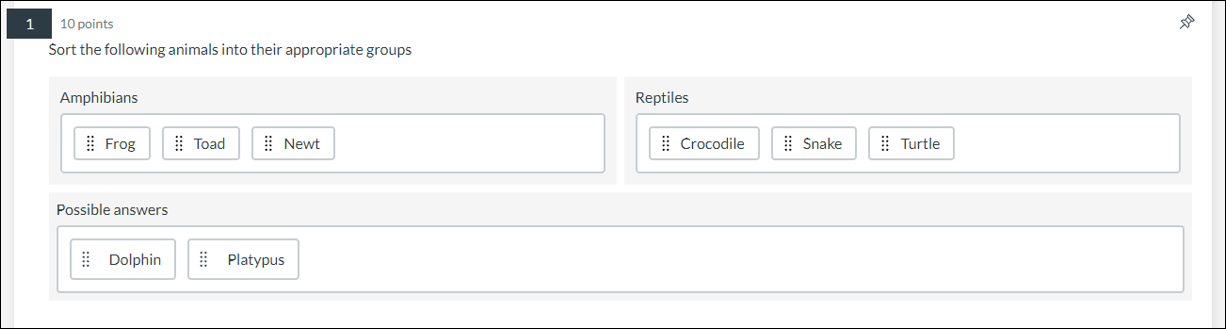
Categorisation questions require students to place answers in the correct categories while ignoring all distractors.
When Categorisation questions are graded, students must categorise all items correctly to earn full points. There is not an option to assign partial credit for Categorisation questions.
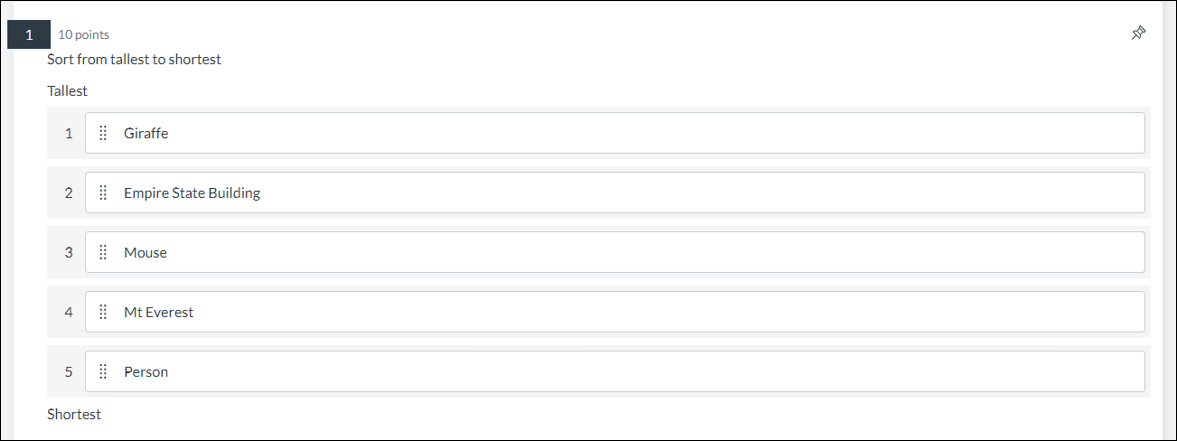
In an Ordering question, students are required to place answers in a specific order. You can add top and bottom labels to the list to help students know in which order they should place their responses.
When Ordering questions are graded, students must order all items correctly to earn full points. There is not an option to assign partial credit for Ordering questions.
Hot Spot questions allow you to upload images and have your students identify a specific area in that image.
The following image types can be used for Hot Spot questions:
- BMP
- GIF
- JPG/JPEG
- PNG
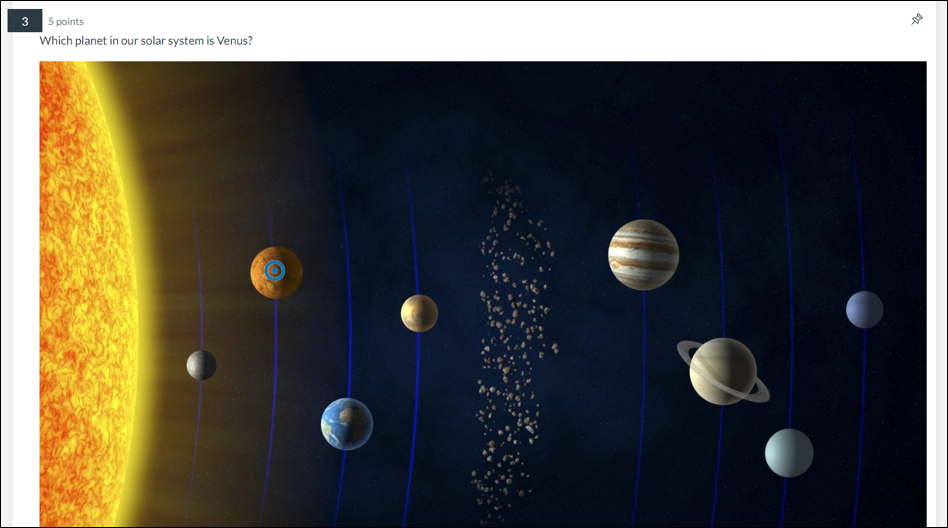
⚠ Hot spot questions are not accessible for users who require keyboard-only access or screen readers.
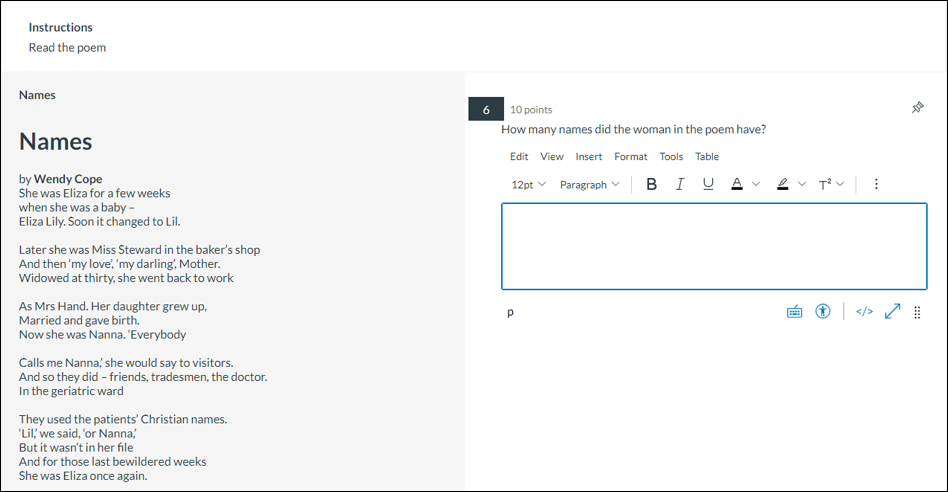
When creating a quiz, you can insert stimulus content in New Quizzes. Stimulus content gives students a piece of content with associated questions.
⚠ Note: You can add stimulus content to an item bank. However, questions attached to the stimulus content are not automatically added to the item bank and must be added manually.