From September 2025, Lucid will be available in Canvas. Lucid seamlessly embeds into your course and can be navigated within Canvas.
Lucidchart and Lucidspark are both part of the Lucid Visual Collaboration Suite but serve different purposes.
What is Lucidchart?
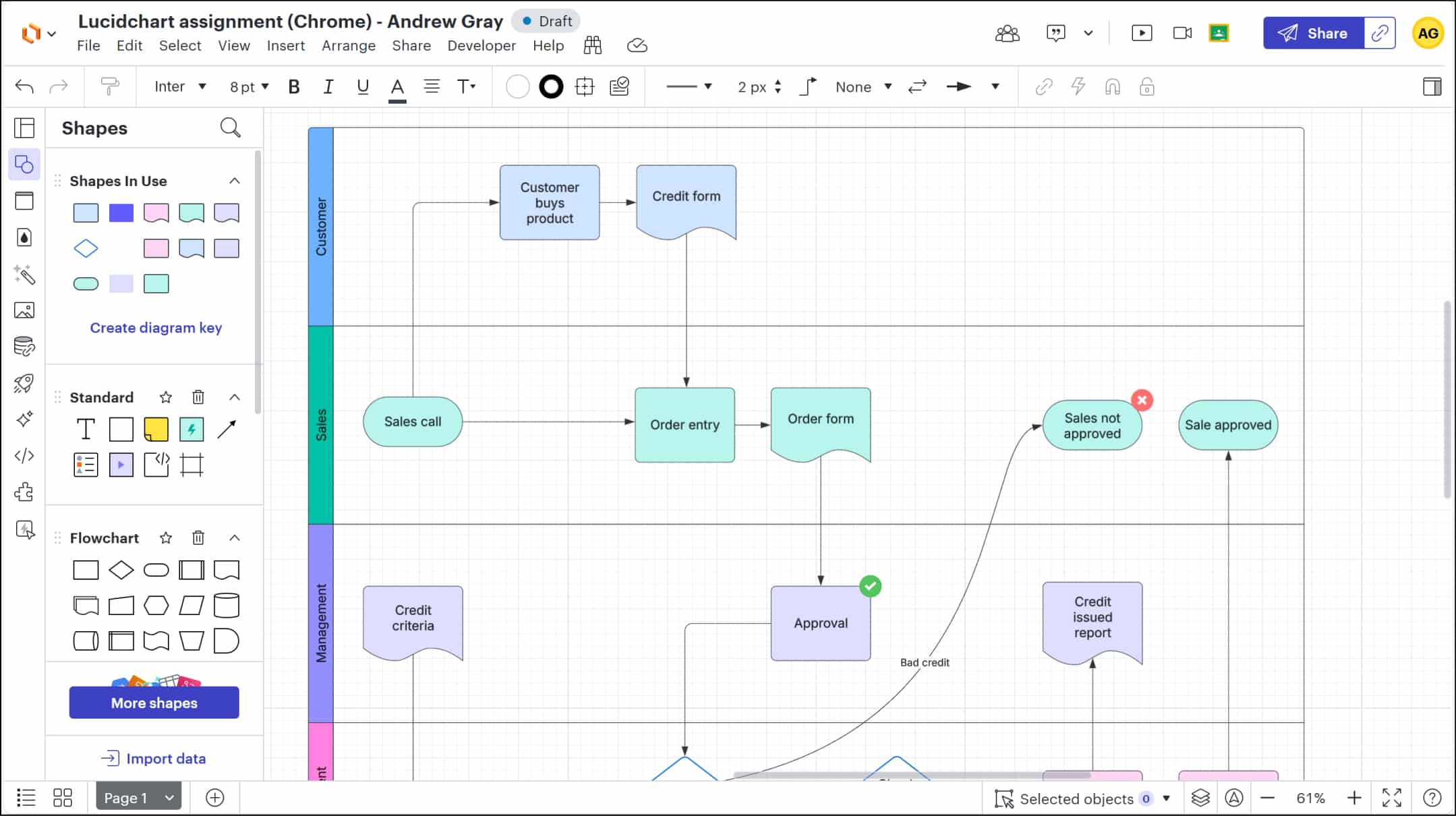
Lucidchart is a visual diagramming application that allows instructors and students to create professional-grade charts, maps, and process flows. Its integration with Canvas enhances academic engagement by enabling structured, logical, and visually compelling learning experiences.
Example uses of Lucidchart
Visualising Complex Concepts: Use flowcharts, Venn diagrams or mind maps to explain theories, relationships, or sequential processes.
Demonstrate Understanding: Assign students to build their own diagrams to demonstrate understanding.
Data Visualisation: Students can convert raw data into readable visual formats (e.g., pie charts, bar graphs, or infographics) for research or presentations.
Assignment Submission: Lucidchart documents can be embedded in Canvas assignments or submitted as part of a portfolio, supporting multimodal learning and assessment.
What is Lucidspark?
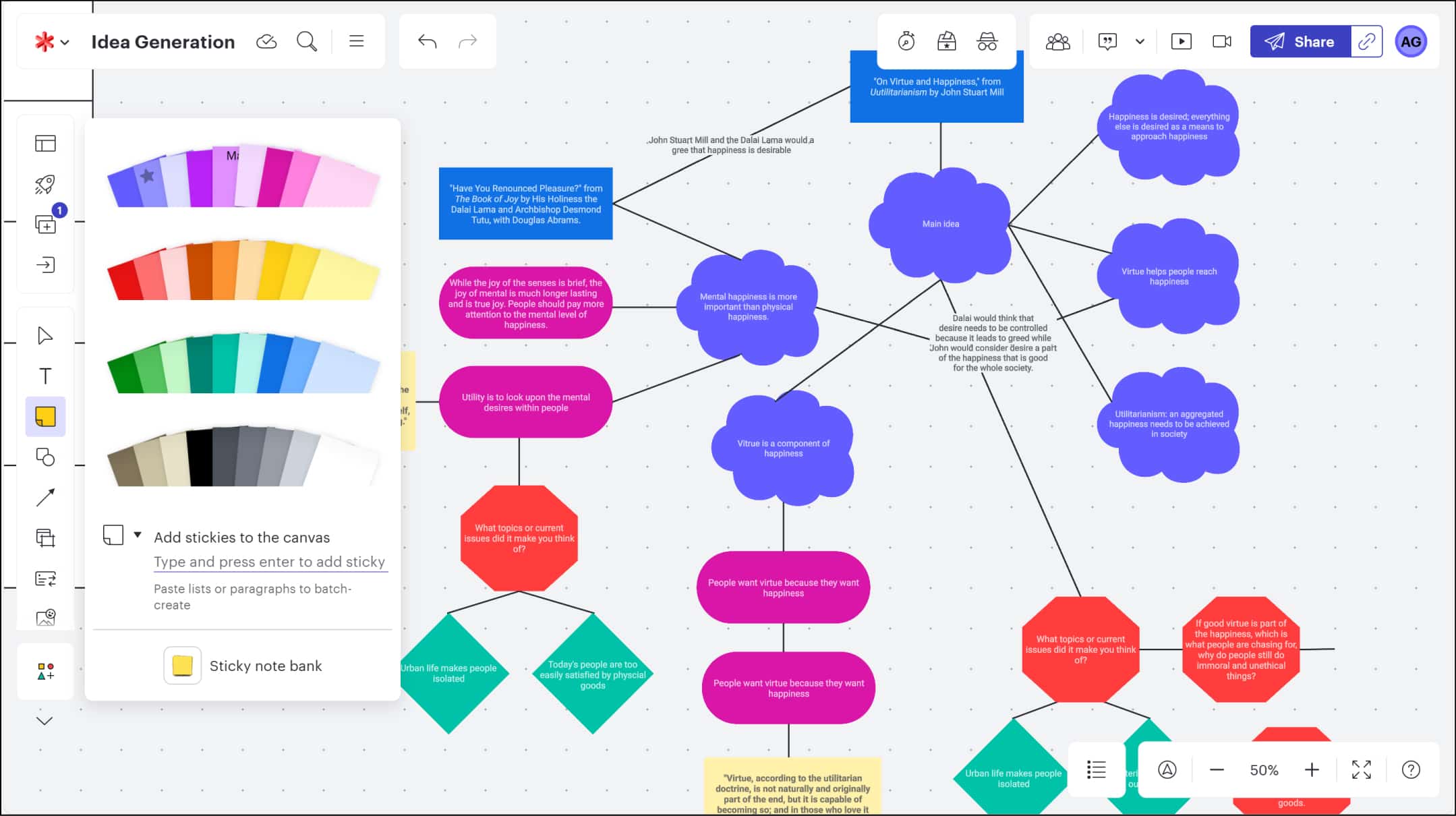
Lucidspark is a virtual whiteboard designed for real-time and asynchronous collaboration. It’s ideal for brainstorming, ideation, and interactive class sessions. Within Canvas, Lucidspark supports learner engagement and active participation across modalities.
Example uses of Lucidspark
Brainstorming: Students can co-create sticky notes, cluster ideas, and map relationships in response to prompts or group challenges.
Real-time Class Interaction: During live lectures, instructors can use Lucidspark as an interactive board for students to annotate, vote, or respond to visual prompts.
Exit Tickets and Polls: Use Lucidspark for low-stakes check-ins, such as “What’s one thing you learned today?” or instant visual polls.
Reflections and Metacognition: Students can document personal learning journeys, share reflections, or build “learning walls” throughout a module.
Activating your Lucid Account
You can activate your Lucid account and access your personal Lucid Homepage by selecting the Lucid (Whiteboard) option from your course navigation menu.
If you are not going to avail of Lucid initially, we would recommend that you remove Lucid (Whiteboard) from your course Navigation Menu.
Getting Started with Lucid in Canvas
Explore how to incorporate Lucid into your Canvas Course from the Introduction to Lucid in Canvas course created by Lucid. This course is designed to introduce you to the Lucid for Education Suite, Lucidspark and Lucidchart, and walk you through how to easily embed Lucid learning activities directly into Canvas.