



Discussion Summaries use a Generative AI model to provide summaries of the main points, questions, and ideas in a discussion thread. These summaries are only available to course instructors and administrators.
- Users can generate a general summary or specify areas or topics they would like the summary to focus on.
- Users can generate a maximum of 25 summaries per day
Overview
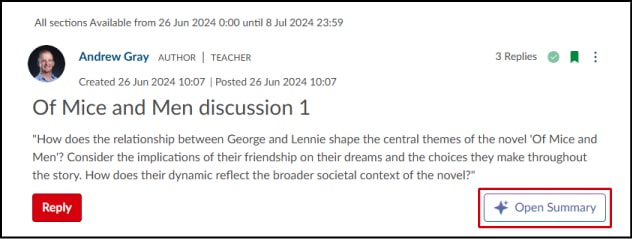
Click on the 'Open Summary' button to generate a summary of the main points, questions, and ideas in a discussion.
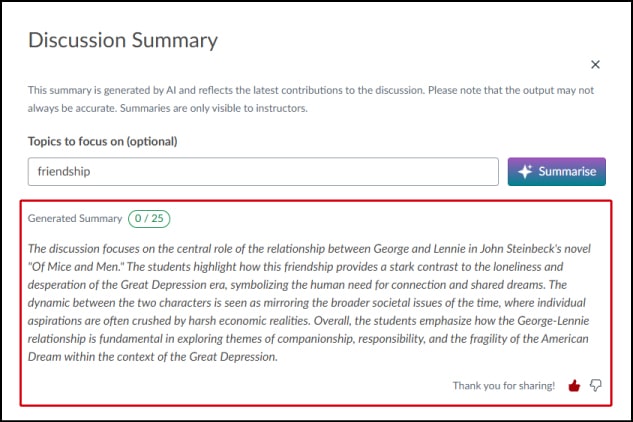
The generated summary appears below the question. Here you can see how many summaries you can generate for that particular day. You can also request to generate a summary to focus on a particular topic.
Potential Use Cases and Benefits
- Quick Review of Student Discussions - Instructors can quickly understand the main ideas, questions, and concerns raised in student discussions.
- Identifying Learning Gaps or Misconceptions - Summaries could highlight recurring questions or misunderstandings.
Take Note
- Summaries are generated by AI and reflects the latest contributions to any discussion. Please note that the output may not always be accurate. Summaries are only visible to instructors.
- This is an opt-in feature. Instructors can choose to activate or deactivate this feature as needed.
- It is recommended that Discussion Summaries are NOT used in graded discussions due to the nature of AI responses.
Further Guidance
- You can read more about What are Discussion Summaries from the Canvas Communities notes
- You can view some Discussion Summary FAQs from the Canvas Community.
Smart Search allows Instructors (all roles) or Students to search for course content from “Smart Search” in the course navigation menu.
Smart Search is a feature preview using advanced AI and semantic algorithms. The Smart Search feature understands the context of queries, providing more accurate and relevant results without needing complex search operators or tools. Currently, the Smart Search feature is querying the following items within a course:
- Pages
- Announcements
- Discussions
- Assignments
Overview
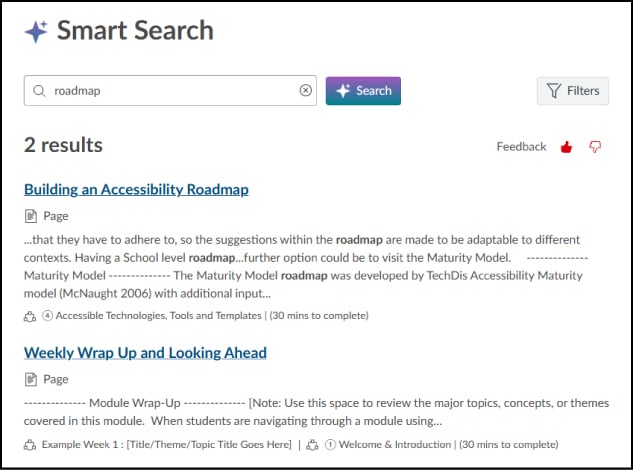
Type what you are looking to find within the search box. Then click on 'Search'. A list of relevant results display will display underneath.
By clicking on the 'Filters' button, you can select the type of content you want to display in search results.
Potential Use Cases and Benefits
- Targeted Resource Discovery for Students – Students can use Smart Search to quickly locate relevant course content, pages, announcements, discussion prompts, and assignment descriptions.
- Locating content for revision – Instructors can use Smart Search to find specific course materials that they wish to review or update
Take Note
- Users who are not native speakers of the course language can search for course content in their own language. You can find the list of supported languages here. Performance may vary depending on the language used.
- This is an opt-in feature. Instructors can choose to activate or deactivate this feature as needed.
Further Guidance
- You can read more about What is Smart Search from the Canvas Communities notes
- You can view some Smart Search FAQs from the Canvas Community.
Instructors can record webcam video, audio, or screen captures as comments on student submissions within SpeedGrader. When audible speech is recorded, captions are automatically generated to enhance accessibility.
Overview
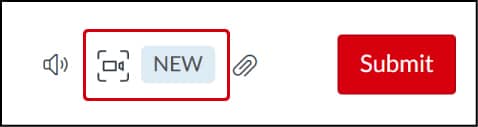
Within Speedgrader, click on the 'Record' icon button to open up the Studio Capture window.
You can decide to record a video using the webcam or upload a previously recorded audio or video file.
Captions may take a few minutes to generate.
Take Note
- Screen capture and automatic captioning for media comments are only available within SpeedGrader.
- The media recorder is currently supported only in Google Chrome and Microsoft Edge.
- There are no current plans to extend support to Firefox or Safari.
Further Guidance
- You can read more about How to record a webcam video, screen capture, or audio recording as a feedback comment in SpeedGrader from the Canvas Communities notes
Within your Inbox settings, users now have the option to configure a personal signature when composing messages, as well as configure automatic responses to incoming messages.
Inbox Signature Block
From your Inbox, select 'Settings'.
Choose the 'Signature On' radio button from the pop-up window and enter your signature message.
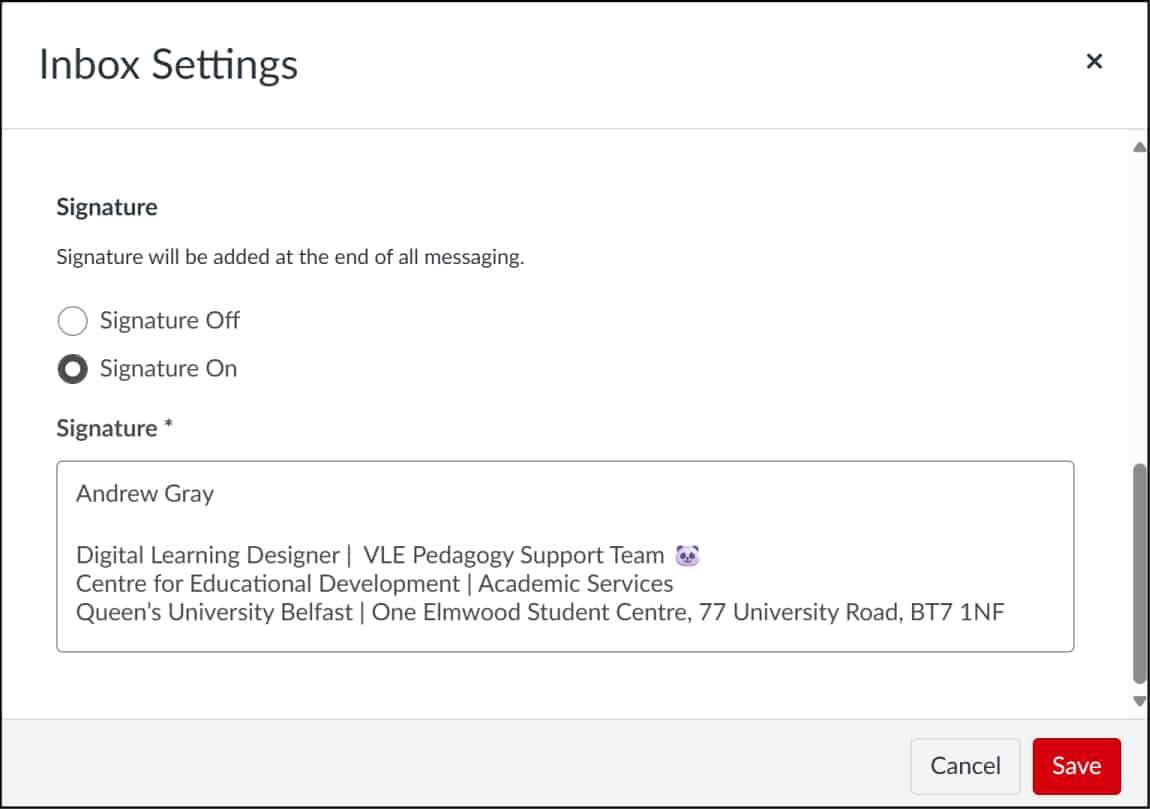
This enhancement improves the clarity, consistency, and professionalism of communications within the Inbox.
Inbox Auto-Response
From your Inbox, select 'Settings'.
Choose the 'Response On' radio button from the pop-up window. Choose a date range, message title and then enter your message.
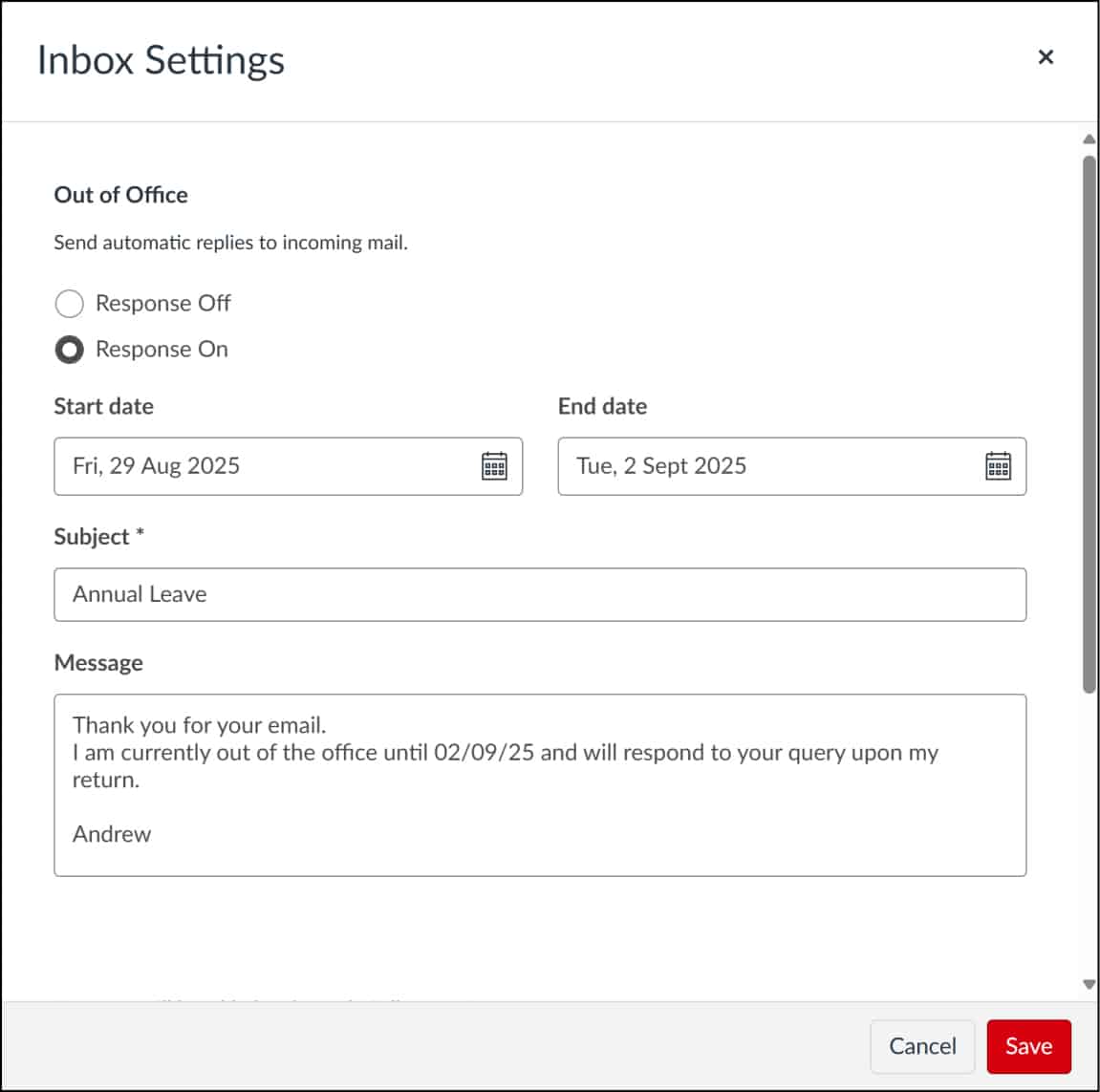
This feature improves communication efficiency and supports timely, automated responses during periods of unavailability.
Name pronunciation allows users to add a phonetic pronunciation of their name within their profile settings.
Implementing this feature supports inclusivity, fosters correct name usage, and helps create a more respectful learning environment.
Overview
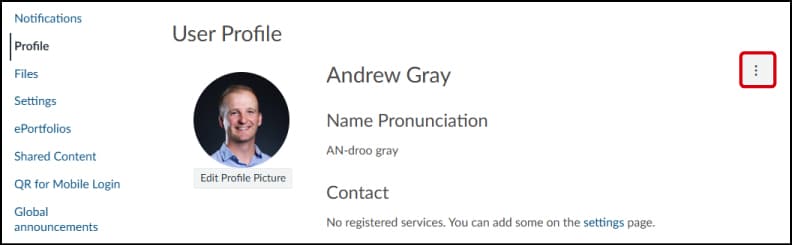
Within your Profile, select the hamburger button on the right hand side (highlighted above) to edit your profile.
Add your phonetic pronunciation to your profile, then click the 'Save' button.
Further Guidance
- You can read more about How to Edit your Profile from the Canvas Communities notes.