
Speak My Language: Free Translation & Transcription Tools for International Students
🗣️ From Speech to Screen: Free Tools for Live Translation and Transcription
Navigating lectures and university life in a second language can be tough. Thankfully, there are some brilliant free tools out there that can turn spoken English into real-time text – even in different languages like Arabic, Punjabi, Mandarin and more. Here are some of our top picks for international students at Queen’s 👇
Microsoft Translator for Outlook
- What it does: Translates emails into your chosen language directly inside Outlook, so you can read and reply without copy-pasting into another app.
- Great for: International students who want to keep on top of university emails, class updates, and group project messages in their own language.
Microsoft Translator in Teams
- What it does: Enables real-time message and meeting translation through built-in features and an AI-powered Interpreter agent.
- Great for: Online meetings and lectures providing real-time captions and transcripts translated into the language of your choice.
- Where to find it:
- Messages: Right-click on a message and select Translate
- Manage Preferences: To change settings, tap your profile picture, go to Settings > General > Translation (choose your preferred language)
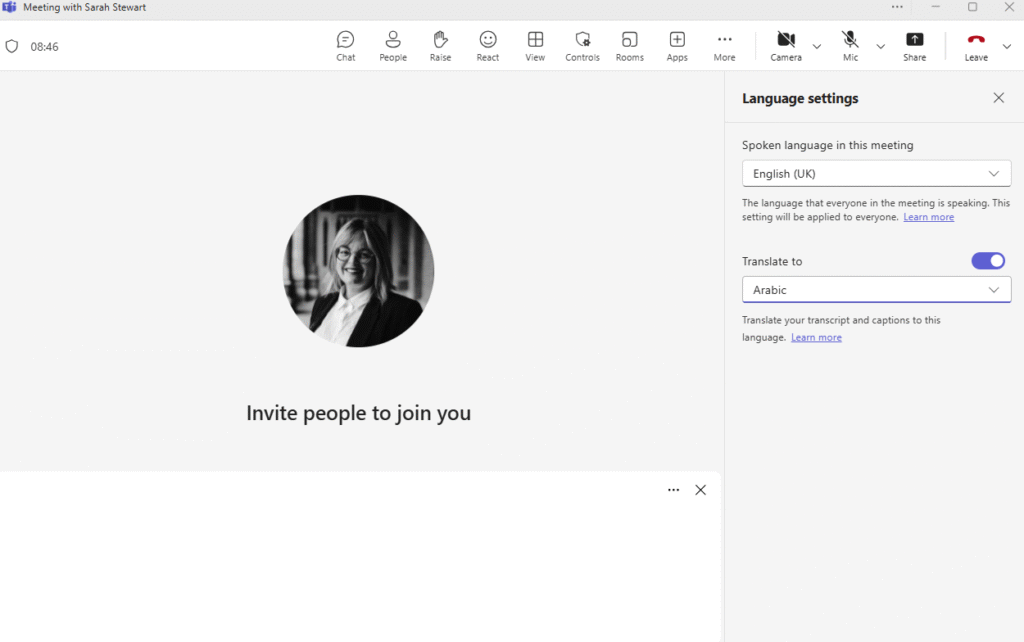
- To Translate During Meetings/Online Lectures:
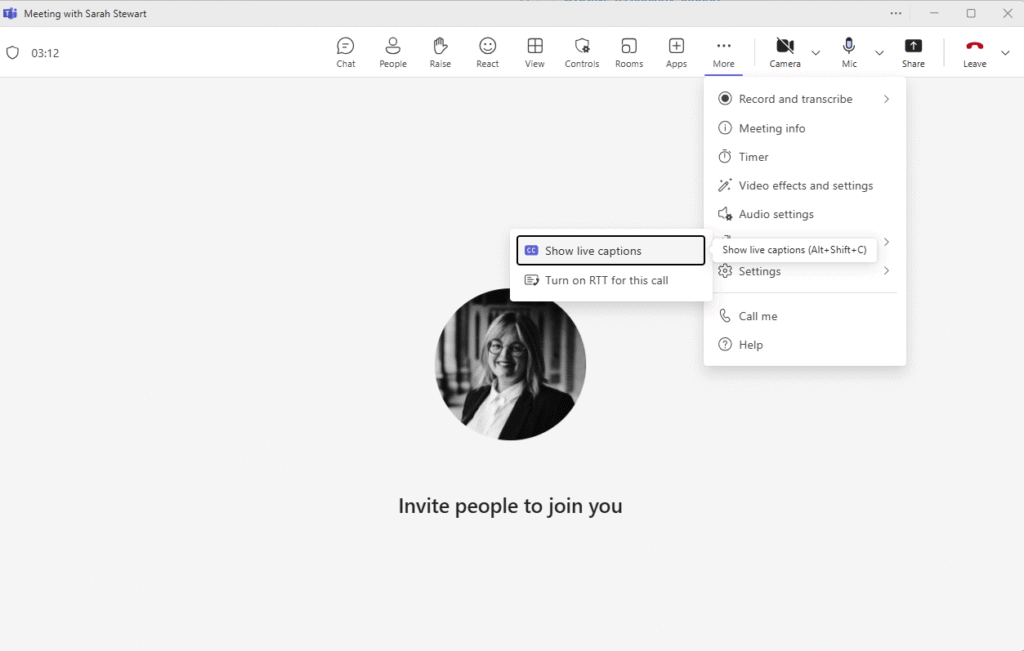
Choose … More – Language and Speech – Show Live Captions
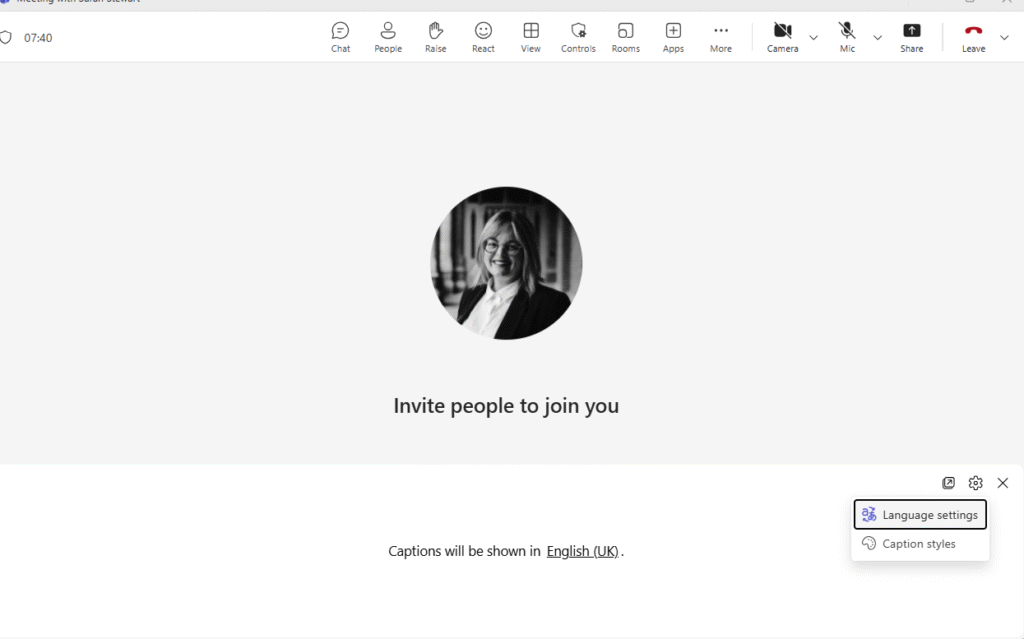
Choose Language Settings – toggle the translation button and choose your language.
Microsoft Translator
- What it does: Real-time voice translation with over 70 languages supported.
- Great for: Group conversations – each person can join via a code and speak in their own language.
- Where to find it: Android, iOS, and desktop version.
Google Translate
- What it does: Translates spoken or typed text between 100+ languages.
- Why we like it: It has a conversation mode for back-and-forth chats and works offline if you download the language packs.
- Where to find it: Free on Google Play and the App Store.
Live Transcribe (Android only)
- What it does: Converts live speech to on-screen text in over 80 languages.
- Why it’s fab: It’s made with accessibility in mind and doesn’t require an internet connection after setup.
- Where to find it: Pre-installed on some Androids or free on Google Play.
Apple Translate (iPhone/iPad only)
- What it does: Translates voice and text between 10+ key languages including Arabic.
- Cool feature: Split-screen conversation mode so you can both see the translations as you chat.
- Where to find it: Built into iOS (check your Translate app), or search in the App Store.
Vidnoz AI Voice Translator (Web-based)
- What it does: Translate voice to 140+ languages with natural-sounding voices.
- Why it’s unique: Ideal for presentations or recorded messages; includes lip-sync and voice effects.
- Where to find it: Use straight from your browser: vidnoz.com
Final Tips
- Check your Wi-Fi or data if you’re using cloud-based tools.
- Use headphones with a mic for clearer audio capture.
- Try pairing these with screen readers or text-to-speech tools if you prefer hearing the translation read aloud.
Discover more from Assistive Technology Hub
Subscribe to get the latest posts sent to your email.

