Following the Miracles of Zoom Audio event, there were plenty of excellent questions, relevant particularly to people teaching music over the internet. Here are some answers that could be useful to others.
When my flute students play, I hear the initial “blast” and then silence. Why?
Explanation: Zoom is cleverly trying to get rid of background noise and mistaking the flute for background noise! If your students were trying to talk, we’d be very grateful if Zoom managed to remove a flute-like sound in the background! The trick is that speech is very stop-start, while many annoying background sounds are persistent and steady. Your computer doesn’t know about foreground/background sounds (the microphone picks up everything equally) and Zoom doesn’t realise that it’s the flute that you want to hear, hence it removes the flute sound rather impressively after a brief toot.
Solution: If you get your students to going into their Audio Settings and set the noise reduction to Low rather than Auto, then this doesn’t seem to attack high-pitched sounds to the same extent.
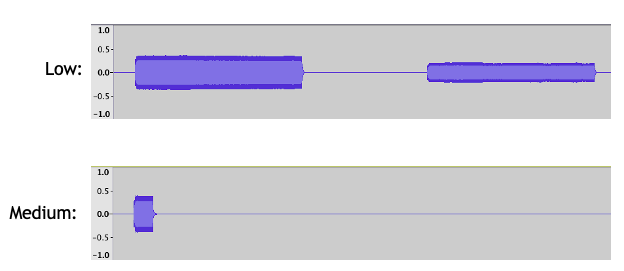
This graph shows the difference, using a 1000-Hz pure tone shows the difference it makes. The “Low” noise reduction leaves the two beeps (and gap in the middle) largely unaffected. Even the “Medium” noise reduction makes the beeps vanish after a short time.
If your students used “high-fidelity music mode”, this would also bypass the noise reduction, but this is trickier to set up and may lead to other problems (including using up a lot of bandwidth).
When I wear headphones, my choir cannot hear backing tracks – ideas?
Explanation: By default, Zoom only transmits the sound that comes in the computer’s microphone. As such, if you simply played music over loudspeakers, you would be relying on the microphone to pick up sounds from the loudspeakers (with degraded quality); if you wear headphones, the microphone will pick up none of it. Your conductor needs to change some of the settings in order to include audio from their computer.
Solution: (Option 1) If you share your screen, you can choose the check box “Include computer audio” as part of that process. (Option 2) You can now get the benefits of that through a similar mechanism but without sharing your screen. See here for instructions. (Option 3) There are cleverer ways to view content simultaneously, e.g. YouTube, but I haven’t yet explored these myself and I’m not sure whether this is part of the basic Zoom package.
What is “Original Sound”?
It is a misleading misnomer! Zoom never transmits the original sound in its entirety, as that would hijack too much of your internet connection for no good reason.
Rather, it is a handy way that you can switch between “conversation mode” (the default) and some version of higher quality audio during a meeting. The exact mode that you enter depends on what check-boxes you have selected in “Audio settings”, but you have the options of “high-quality music mode”, “echo cancellation” and “stereo”.
Stereo sends two channels (left and right) rather than the default mono. Most of us are probably only using a single microphone, so wouldn’t get much benefit from stereo. Use the other two options with care—see NI Science Festival talk for the unavoidably longer explanation.
Note that you will need to change your settings to even see this Original Sound option.
Do these adjustments happen for everyone, or do we need each of our students to go through these processes?
All your students will need to tweak their settings so that you can hear them as you want to. Your settings only directly affect the audio that comes from your computer, to the best of my knowledge. So if you want to listen to your students play the flute without noise reduction, then they need to make that changes at their end.
Note that this doesn’t mean that everybody’s audio is independent. For example, if you turn off your echo cancellation without taking precautions (e.g. wearing headphones), then your computer could be a source of echoes for others. Any sounds from your computer could also cause others’ levels to be attenuated. It can be hard to diagnose the source of a problem, so each caller needs to do the best audio hygiene they can.